
What you can do with Jibble in ChatGPT
Manage Jibble attendance and time off, track time, and check timesheets via ChatGPT
Once you have connected Jibble to ChatGPT, you can manage your time, attendance, time off, projects, schedules, and much more by simply typing a prompt, instead of navigating the Jibble app. ChatGPT works within your existing Jibble role and permissions, so you can only see and do what your account already allows.
To understand more about the connection between Jibble and ChatGPT, check our article on how Jibble’s time tracking MCP works.
This article covers:
- Tracking time and managing time entries
- Checking timesheets and attendance
- Managing time off
- Working with projects, activities, and clients
- Managing schedules
- Managing people and groups
- Accessing organization information
- Reviewing and summarizing your data
Tracking time and managing time entries
With ChatGPT, you can start and stop your timer, manage breaks, and correct your entries without opening Jibble.
Depending on your role, permissions, and settings, you can:
- Clock in and clock out
- Start and end breaks
- Add hours you forgot to track
- Edit or delete existing time entries
- Log hours against a project or activity
- Check which timezone your timesheet is calculated in
Some example prompts you can try asking:
- “Clock me in”
- “Start my break”
- “I forgot to clock in this morning, add 9am to 1pm for me”
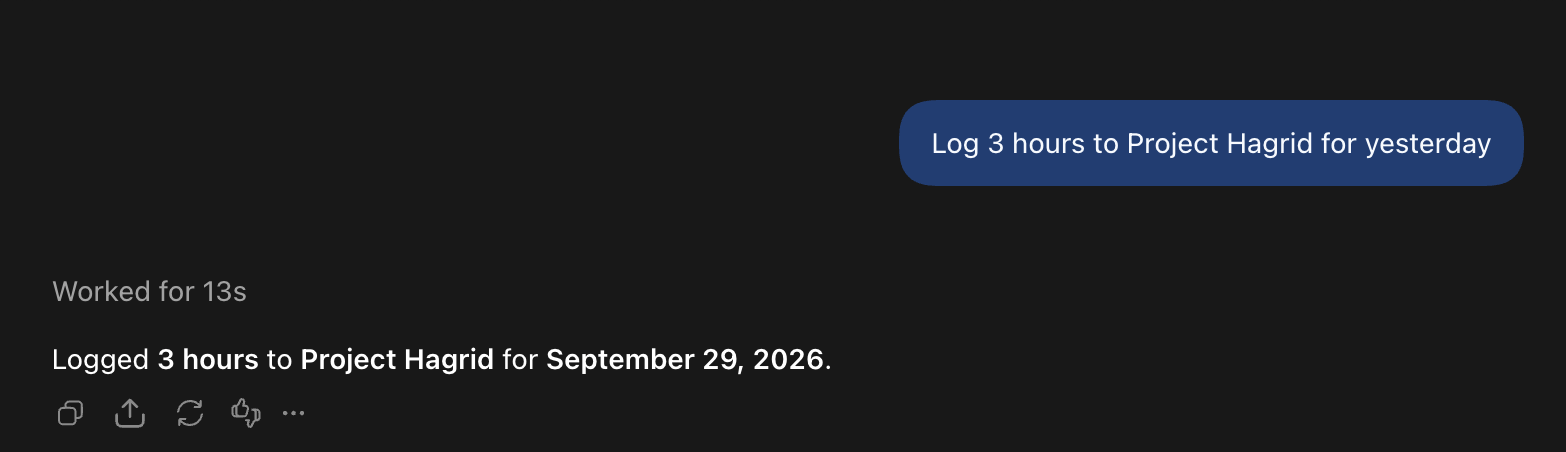
- “Log 3 hours to Project Hagrid for yesterday”
Checking timesheets and attendance
ChatGPT can pull up your hours, or your team’s, and see the attendance picture behind them.
Depending on your role and permissions, ChatGPT can help you:
- View your own timesheet for a day, week, month, or custom range
- View timesheets for a group or team you manage
- Check attendance rates, late arrivals, and no-shows
- Review hours by project or activity
- Pull time tracking and attendance reports
Try asking these prompts:
- “How many hours did I work last week?”
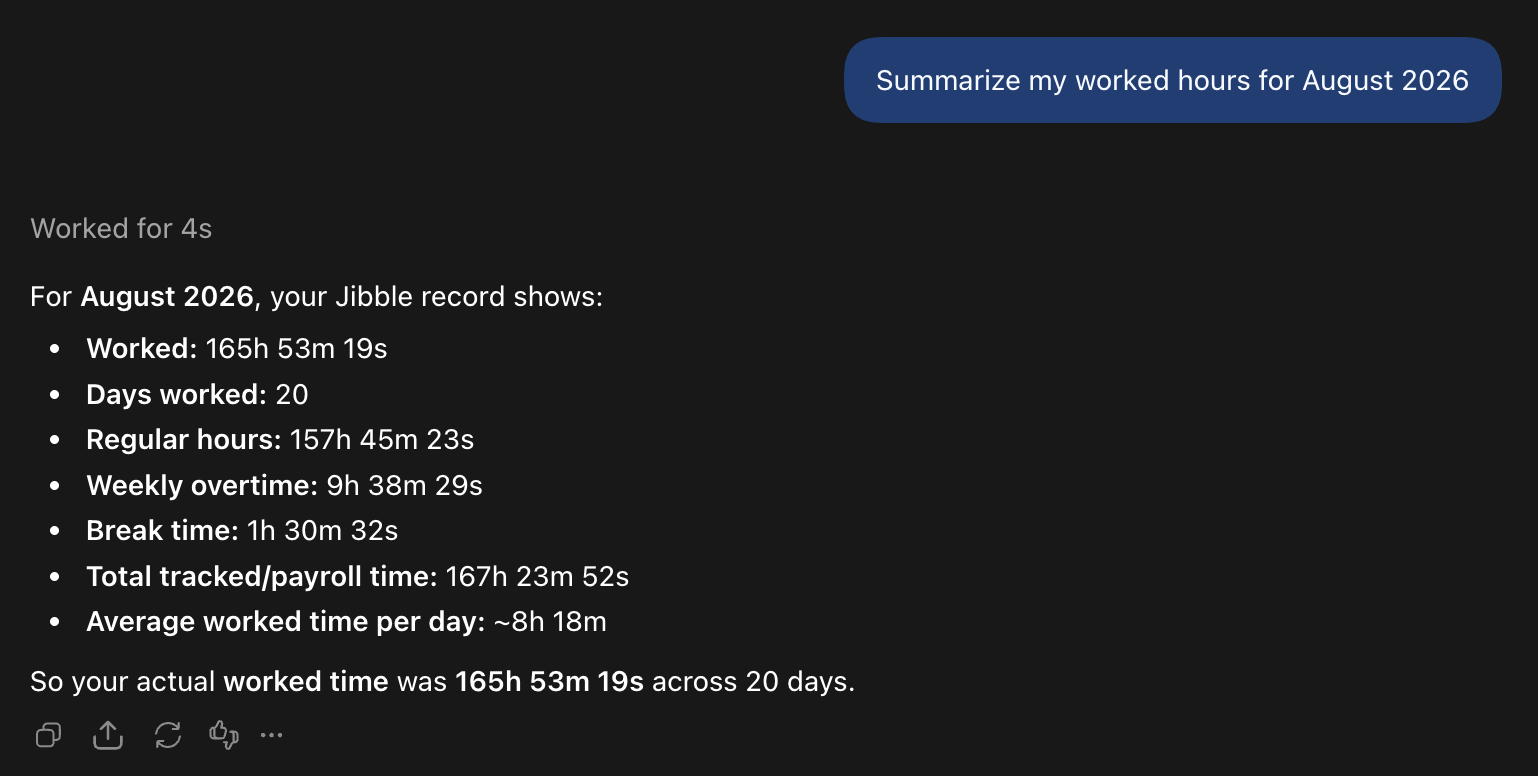
- “Summarize my worked hours for August 2026”
- “Who is currently on break?”
- “What were the Engineering team’s hours in September?”
Managing time off
You can use ChatGPT to check leave balances, request leave, or even handle requests from your team.
Depending on your role and permissions, you can:
- Check your remaining time-off balance
- Review your leave history and balance changes
- Request time off and view pending requests
- Approve, reject, or cancel requests
- Check upcoming team time off and public holidays
Some example prompts:
- “How many days of annual leave do I have left?”
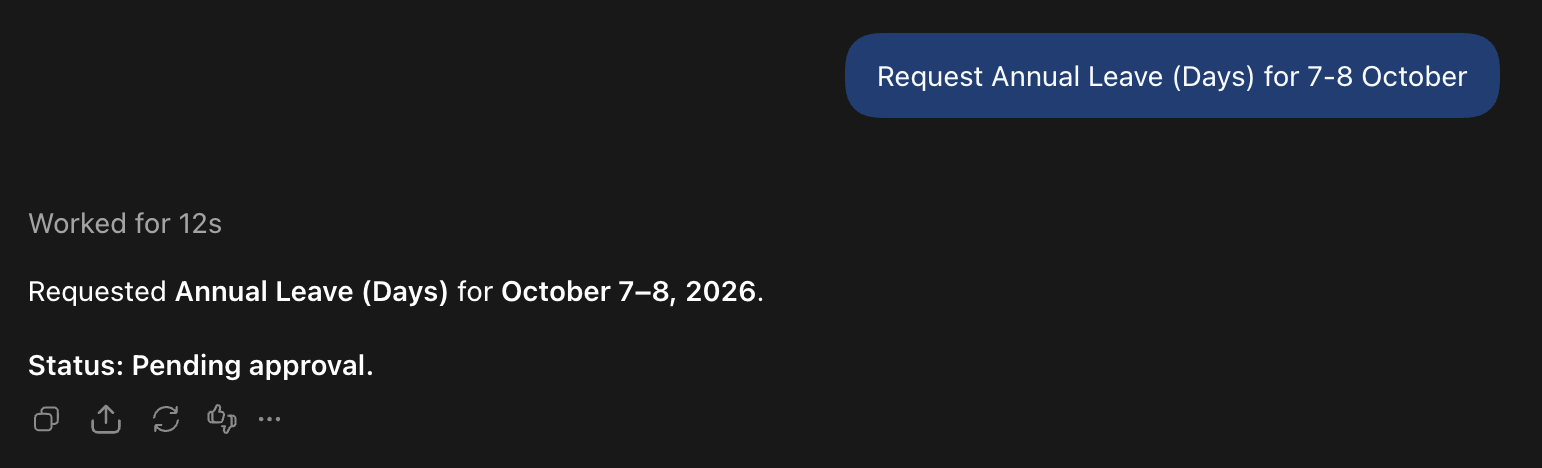
- “Request time off next Friday”
- “Any leave requests waiting for my approval?”
- “Which public holidays are coming up?”
Working with projects, activities, and clients
ChatGPT can help you set up and organize the projects, activities, and clients your team tracks time against. Most of these actions are available to Owners and Admins.
As an Owner and Admin, ChatGPT can help you:
- List your projects, activities, and clients
- Create new projects, activities, and clients
- Rename, update, or archive existing ones
- Assign activities to groups
- Check project information
- View hours tracked against projects or activities
Try asking:
- “What active projects do we have?”
- “Create a project called Project Phoenix”
- “How much time did we spend on Project Dumbledore?”
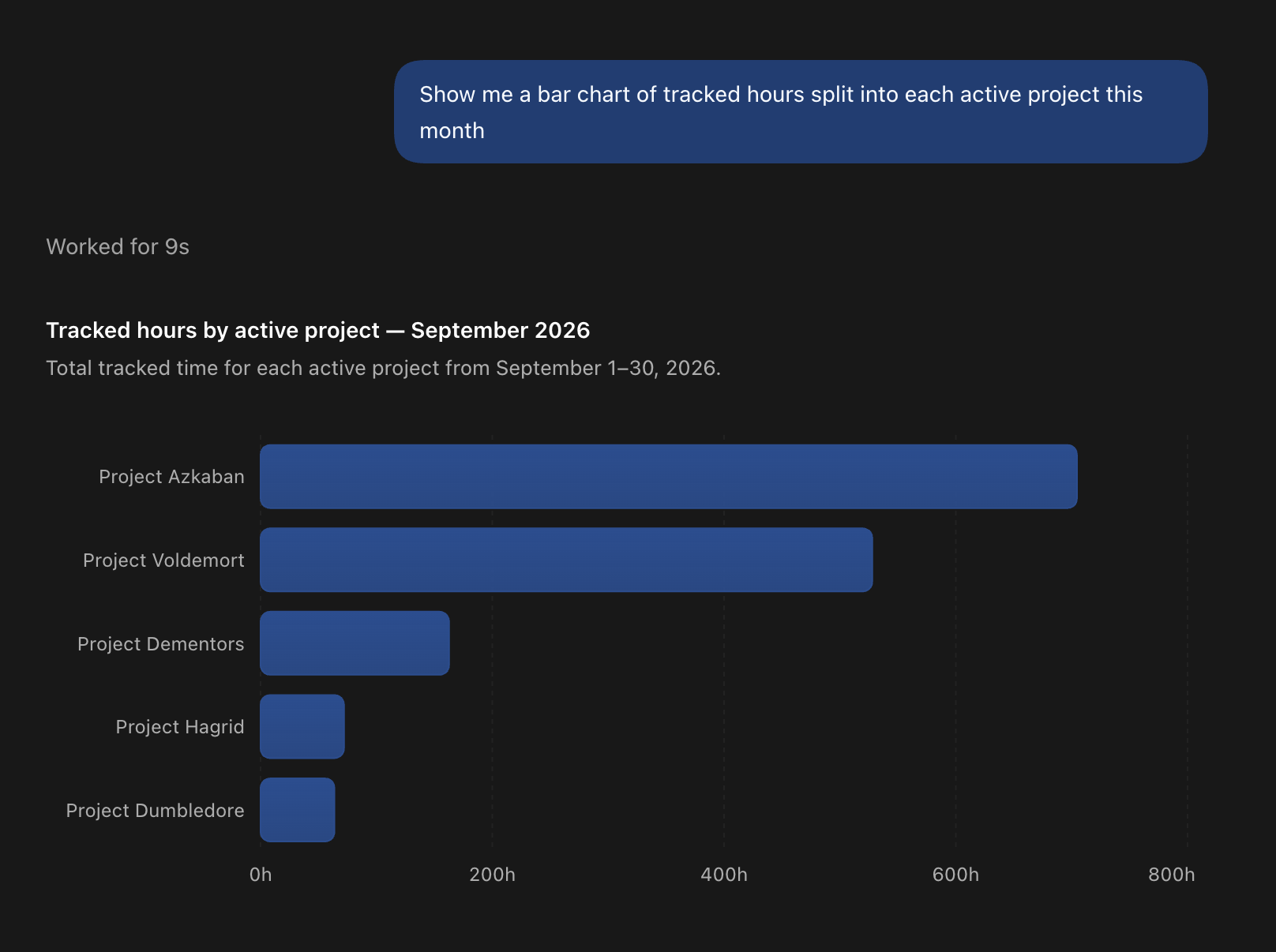
- “Show me a chart of tracked hours this month split into each project”
- “Which activities have the least tracked time this month?”
Managing schedules
As an Owner or Admin, you can review the schedules you have set up, understand who works when, and make changes across your team.
You can ask ChatGPT to:
- View all schedules in your organization
- See who is assigned to a schedule
- Create, update, and delete schedules
- Assign schedules to people or groups
- Check your own assigned schedule and what you can track time against
You can try asking:
- “What schedules do we have set up?”
- “Who is on the morning shift?”
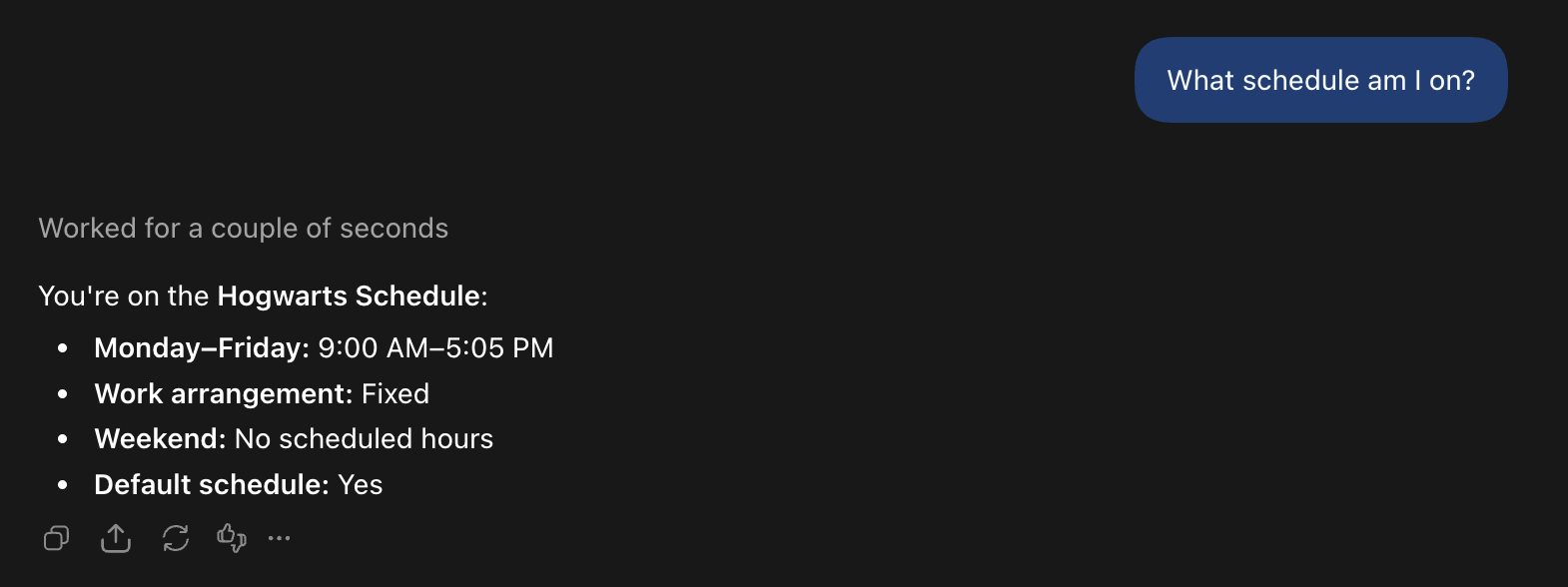
- “What schedule am I on?”
- “Assign Sarah to the Hogwarts schedule”
Managing people and groups
ChatGPT can handle your team’s setup without leaving the conversation. What you can change here depends on your role.
Depending on your permissions, an Owner/Admin/Manager can:
- Add and invite new members
- Update an existing member’s information
- Create and manage groups
- Move people between groups
Some examples include:
- “Who is in the Ravenclaw group?”
- “What position is Daniel assigned to?”
- “Move Hermoine into the Gryffindor group”
- “Add a new position called Shift Supervisor”

Accessing organization information
You can easily look up information on your Jibble organization and how your organization is configured directly from ChatGPT’s chatbot.
Depending on your role and permissions, you can:
- Review organization, group, and personal settings
- Update organization settings, if you are an Owner or Admin
- List active locations and their geofences
- View leave policies, calendars, and schedules
- Access reports on tracked time and attendance
- Check what is included in your current subscription
Try asking:
- “What work schedules have been set up in this organization?”
- “What are this organization’s time tracking settings?”
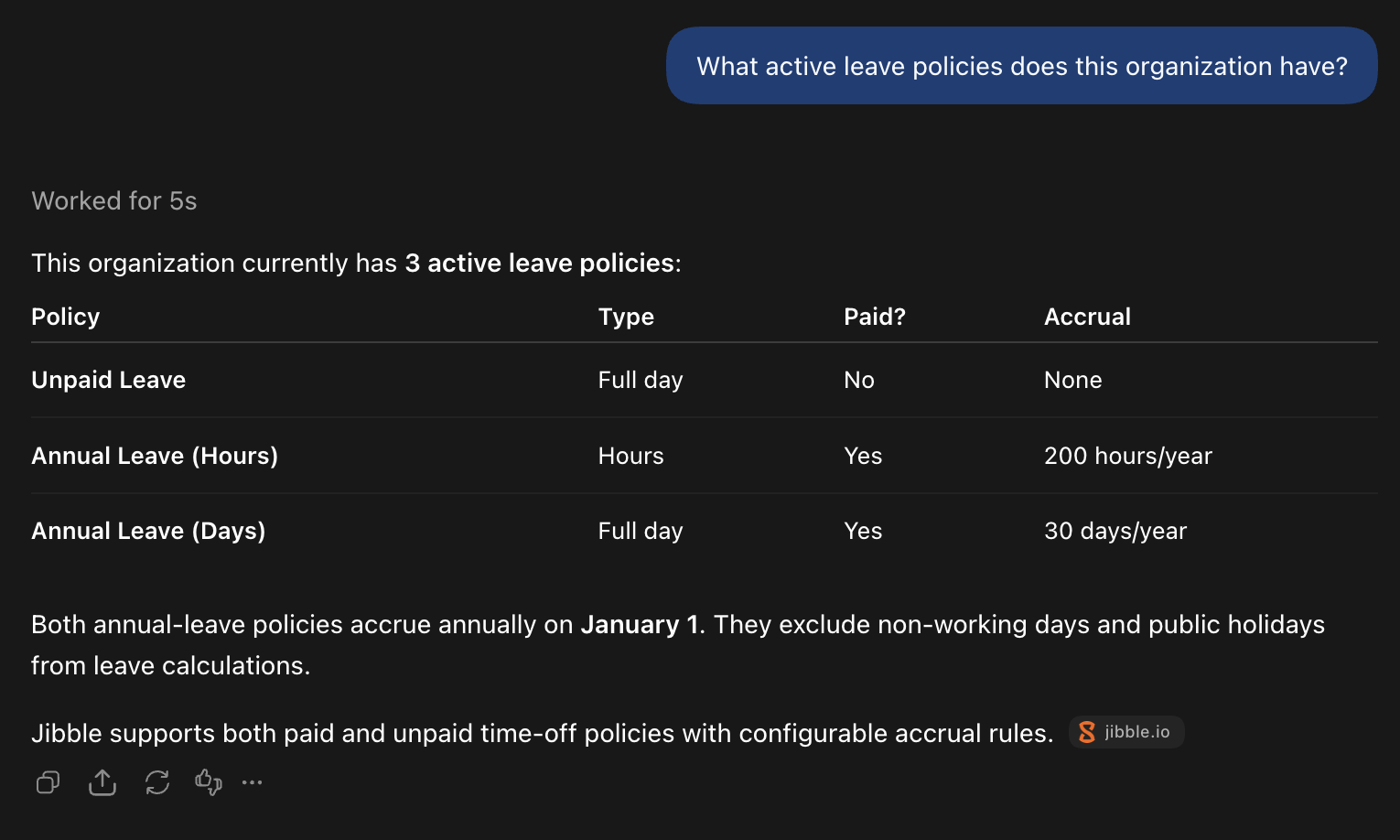
- “What active leave policies does this organization have?”
- “Which locations do we have set up?”
- “What features are included in our plan?”
Reviewing and summarizing your data
Beyond looking things up, ChatGPT can summarize your Jibble time data so you get a quick overview of hours across different weeks or attendance trends.
Depending on your role and permissions, you can:
- Summarize your own or your team’s hours for any period
- Break hours down by project, activity, or person
- Compare one period against another
- Spot patterns in attendance, such as late arrivals or no-shows
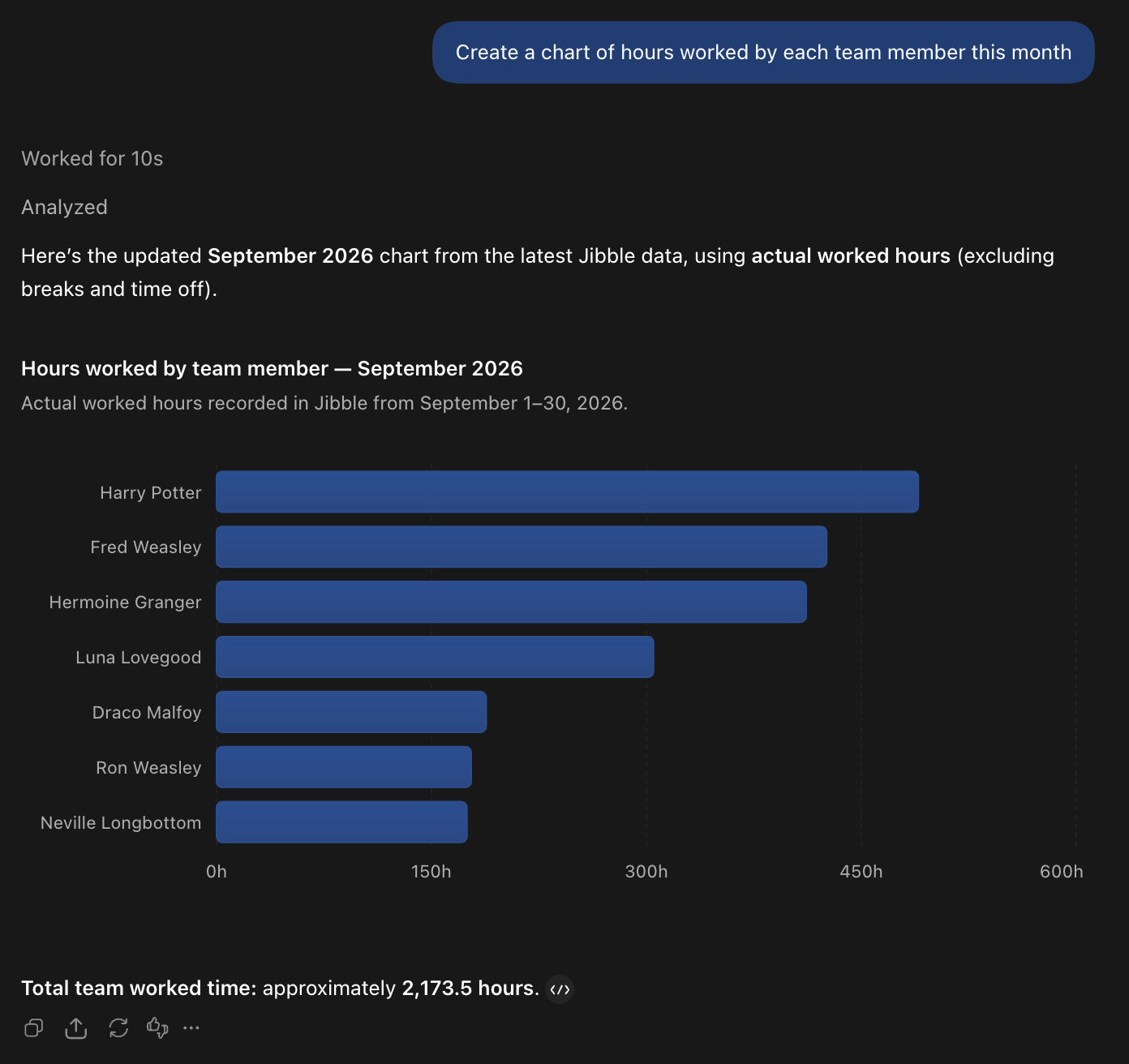
- Turn any of it into a chart or table in the conversation
Try asking:
- “Summarize my team’s hours for September 2026”
- “Break down our tracked hours by project for last month”
- “Compare the Gryffindor team’s hours in September with August”
- “Create a chart of hours worked by each team member this month”
For an in-depth guide to working with your Jibble data in ChatGPT, including recurring reports and comparison charts, read our article on analyzing time and attendance data with ChatGPT.