
How Jibble’s time tracking MCP works
Understand how Jibble MCP connects AI assistants to your data
Jibble’s AI time tracking Model Context Protocol (MCP) integration lets supported AI assistants connect directly to your Jibble organization. You can ask questions, access your time and attendance data, and perform actions in Jibble using natural language.
Instead of switching between your AI assistant and Jibble, you can simply ask your AI assistant to perform an action or find information for you.
This article covers:
- What is Jibble MCP?
- How does Jibble MCP work?
- What can you do with Jibble MCP?
- How do permissions and access work?
- Which AI assistants support Jibble MCP?
What is Jibble MCP?
MCP stands for Model Context Protocol, an open standard that allows AI assistants to securely connect to external tools and services.
Jibble MCP is Jibble’s implementation of this standard. Once connected, a supported AI assistant can interact with your Jibble organization, allowing you to access information and perform supported actions through a conversation.
Think of MCP as a bridge between your AI assistant and Jibble. When you make a request, the assistant sends it through Jibble MCP, Jibble processes the request based on your account and permissions, and the relevant information or action is returned to the conversation.
How does Jibble MCP work?
Jibble MCP connects three main components:
- Your AI assistant: Where you ask questions or give instructions, such as Claude or ChatGPT.
- Jibble’s MCP server: The connection that allows the AI assistant to communicate with Jibble.
- Your Jibble organization: Where your time, attendance, projects, time off, and other Jibble data are stored.
The process works like this:
You → AI assistant → Jibble MCP → Jibble → AI assistant → You
For example:
- You ask Claude, “How many hours did I work this week?”
- Claude sends the request through Jibble MCP.
- Jibble checks the information available to your account.
- Jibble returns the relevant time data.
- Claude presents the answer in the conversation.
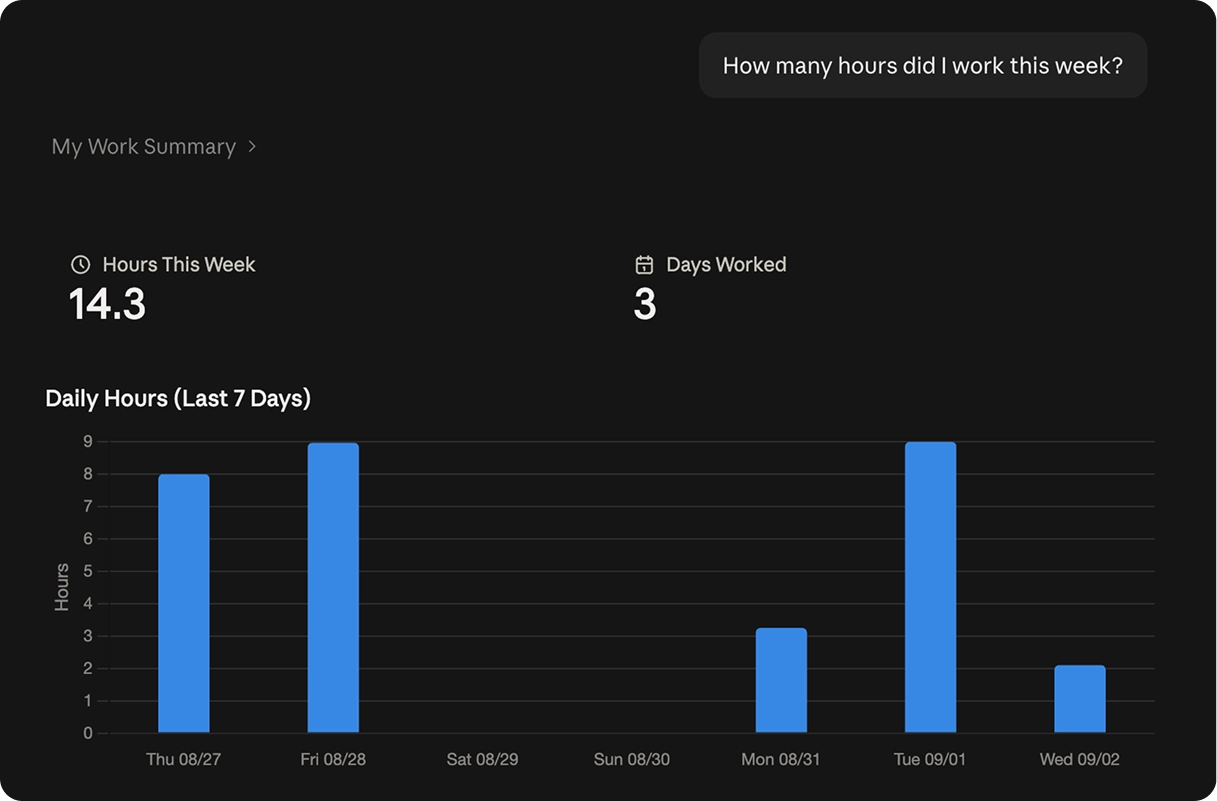
When an action is requested, such as clocking in or adding a time entry, Jibble processes the action according to your account permissions.
What can you do with Jibble MCP?
Jibble MCP lets supported AI assistants interact with Jibble in a range of ways.
Depending on your role, permissions, and the AI assistant you’re using, you can:
- Clock in and out
- Start and end breaks
- Add or edit time entries
- Check timesheets and worked hours
- View attendance information
- Request or manage time off
- Work with projects and activities
- Access team and organization information
- Generate and summarize reports
- Analyze time and attendance data
How do permissions and access work?
Jibble MCP follows the roles and permissions already assigned to your Jibble account. Connecting an AI assistant does not give you access to additional information or actions. Check out roles and permissions in Jibble for more details.
For example, a Member can generally access their own time and attendance information, while a Manager may also have access to information for the people they manage. Admins and Owners have broader access based on their Jibble permissions.
Jibble uses OAuth to authorize the connection between your account and a supported AI assistant. When you connect Jibble, you’ll need to first sign in to your Jibble account and authorize the connection.
Which AI assistants support Jibble MCP?
Jibble MCP works with AI assistants that support MCP connections.
Check out our dedicated setup guides below for supported platforms: