
Using Jibble in Cursor
Connect Jibble to Cursor to track time, request leave, and run reports using natural language
With Cursor time tracking, you can connect Jibble directly to your coding workflow to log hours, manage projects, and check timesheets using simple prompts — without leaving Cursor.
For more details on how the connection works, see how Jibble’s time tracking MCP works.
This article covers:
Requirements and availability
Who can use this feature?
Jibble MCP is available to all users, with access and features determined by role:
- Members can track their time, view their timesheets, and manage their own leave.
- Managers can access relevant team information and perform additional actions for the people they manage.
- Admins and Owners have broader access to organization and team data and can manage organization settings.
Before you begin
Ensure you have the following:
- An active Jibble account — sign up here if you don’t have one yet
- A Cursor account
Note: No API keys or tokens are needed. Jibble MCP uses secure OAuth authentication, allowing you to sign in with your Jibble credentials during setup.
Connecting Jibble to Cursor
- Open Cursor.
- Go to Settings > Tools & MCP.
- Click New MCP Server.
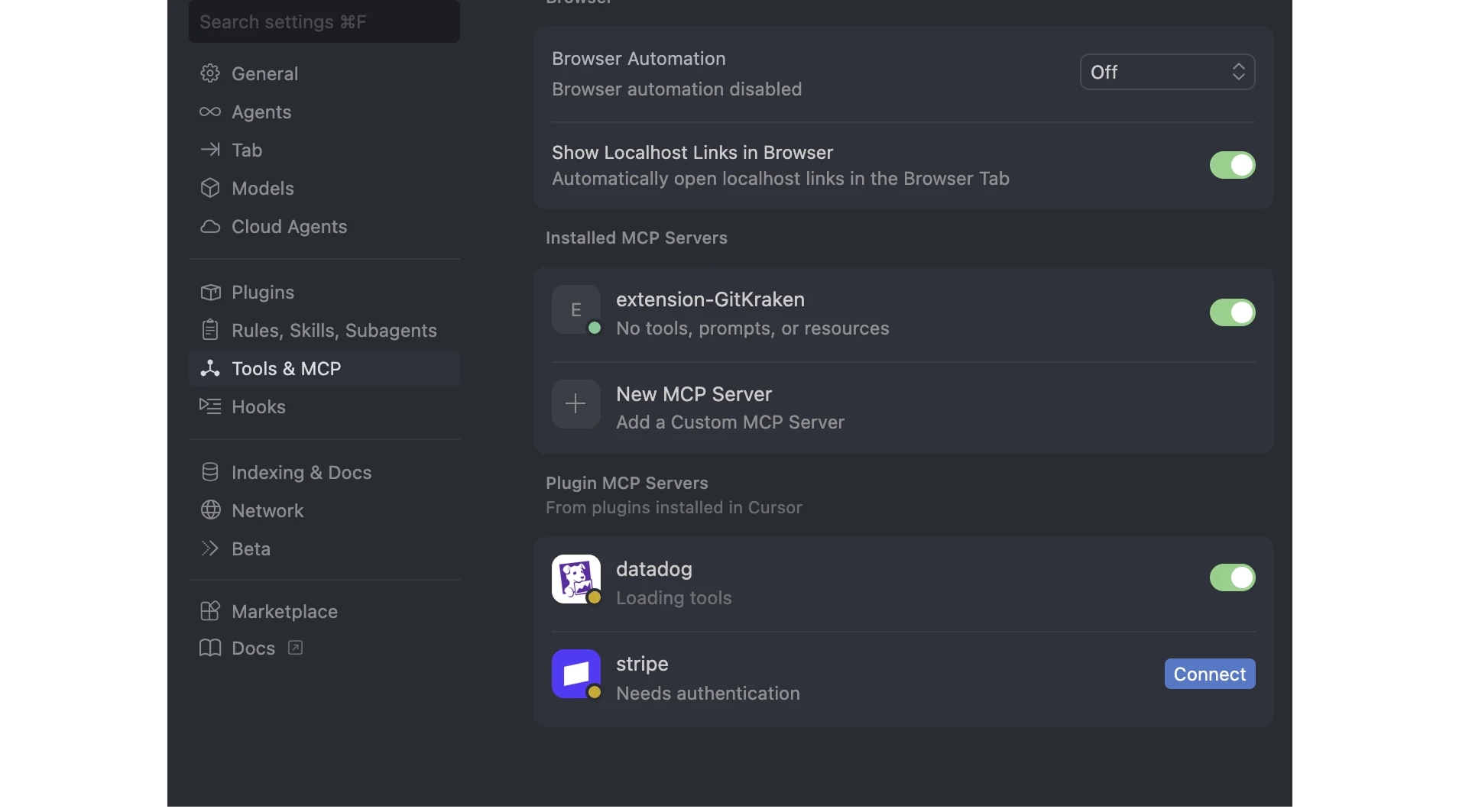
- Add the following configuration:
"mcpServers": { "jibble": { "url": "https://mcp.jibble.io" } } - Save the file.
- macOS: Cmd + S
- Windows: Ctrl + S
- Go back to Tools & MCP and click Connect on the Jibble MCP Connection.

- Sign in to Jibble and authorize access.
- Open the AI chat panel and send a prompt to get started.
Using Jibble in Cursor after connecting
Once connected, you can use natural language in Cursor to track time, manage projects, check timesheets, and access your Jibble data.
| Category | Example prompts |
| Time tracking |
|
| Timesheets & reports |
|
| Leave management |
|
| Workspace info |
|
| Managers & admins (role-restricted) |
|