
Connecting Jibble to Claude
Learn how to connect Jibble to Claude using the Jibble MCP integration
With Claude time tracking, you can manage your Jibble time and attendance directly from a conversation with Claude. Clock in and out, log hours, check timesheets, request leave, and get answers from your Jibble data using natural language.
Once connected, Claude can interact with Jibble based on your existing role and permissions, making it easier to get things done without switching between apps.
For an overview of how the connection works, see how Jibble’s time tracking MCP works.
This article covers:
Requirements and availability
Who can use this feature?
Jibble MCP is available across Jibble accounts, with access to information and actions based on your role and permissions.
- Members can track their time, view their timesheets, and manage their own leave.
- Managers can access relevant team information and perform additional actions for the people they manage.
- Admins and Owners have broader access to organization and team data and can manage organization settings.
Before you begin
Make sure you have:
- An active Jibble account — sign up here if you don’t have one yet
- An account on Claude
Note: No API keys or tokens are needed. Jibble MCP uses secure OAuth authentication, so you’ll simply log in with your Jibble credentials during setup.
Connecting Jibble to Claude
The setup process depends on your Claude plan. Follow the steps for your account type below.
For Pro and Max plans
- Go to Claude and sign in.
- Click Customize in the left sidebar.
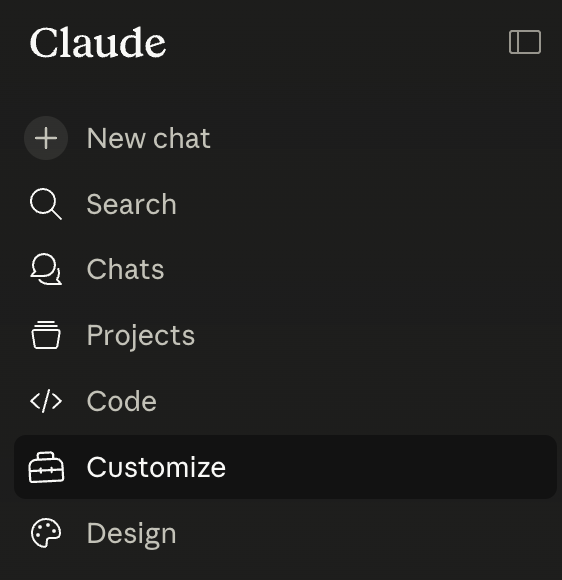
- Select Connectors.
- Find Jibble in the directory, or go directly to Jibble’s directory page.

- Click Connect.
- Sign in to Jibble and authorize access.
- You’re all set! Start a new chat and try a prompt like “Clock me in”.
For Team and Enterprise plans (Owner setup)
On Team and Enterprise plans, setup is a two-part process. An Owner or Primary Owner must first add Jibble as an organization connector. Then, each person connects their own Jibble account individually.
- Go to Claude and sign in.
- Navigate to Organization Settings.
- Select Connectors.
- Find Jibble and add it.
For Team and Enterprise members (after Owner setup)
Once the Owner has added Jibble, each team member needs to connect to it.
- Click Customize in the left sidebar.
- Select Connectors.
- Find Jibble in the list and click Connect.
- Sign in to Jibble and authorize access when prompted.
- You’re all set! Start a new chat and try a prompt like “Clock me in”.
Note: Adding Jibble for the organization does not connect individual accounts. Each person must connect their own Jibble account and will only have access to the information and actions allowed by their Jibble role and permissions.
Using Jibble in Claude after connecting
Once Jibble is connected, you can interact with your Jibble data directly through Claude using natural language.
For example, you can:
- Clock in and out
- Start and end breaks
- Log or edit time entries
- Check your timesheet and worked hours
- View attendance information
- Request or manage time off
- Work with projects and activities
- Generate reports and summaries
- Analyze time and attendance data
For more examples, see what you can do with Jibble in Claude.
To learn how Claude can analyze your Jibble data, see analyzing time and attendance data with Claude.