
Use Jibble with Cursor
Link Jibble MCP to your AI assistant and streamline time tracking, leave requests, and report generation with simple commands.
Jibble MCP Server allows your AI assistant to connect straight to your workspace, so you can work without switching tabs.
Learn more about how to use Jibble’s AI Assistant
This article covers:
- What is Jibble MCP?
- Requirements and availability
- Connecting Jibble to Cursor
- What you can do with Jibble using AI
What is Jibble MCP?
Jibble MCP connects your AI assistant directly to your Jibble workspace, enabling you to clock in, log time, request leave, and more through simple prompts.
It’s built on the Model Context Protocol (MCP), an open standard that allows AI assistants to securely connect with external tools.
Requirements and availability
Who can use this feature?
Jibble MCP is available to all users, with access and features determined by role:
- Members can track time, view timesheets, and apply for leave
- Managers and Admins can also approve requests, view team data, and manage workspace settings
Before you begin
Ensure you have the following:
- An active Jibble account — sign up here if you don’t have one yet
- A Cursor account
Note: No API keys or tokens are needed. Jibble MCP uses secure OAuth authentication, allowing you to sign in with your Jibble credentials during setup.
Connecting Jibble to Cursor
- Open Cursor.
- Go to Settings → Tools & MCP.
- Click New MCP Server.
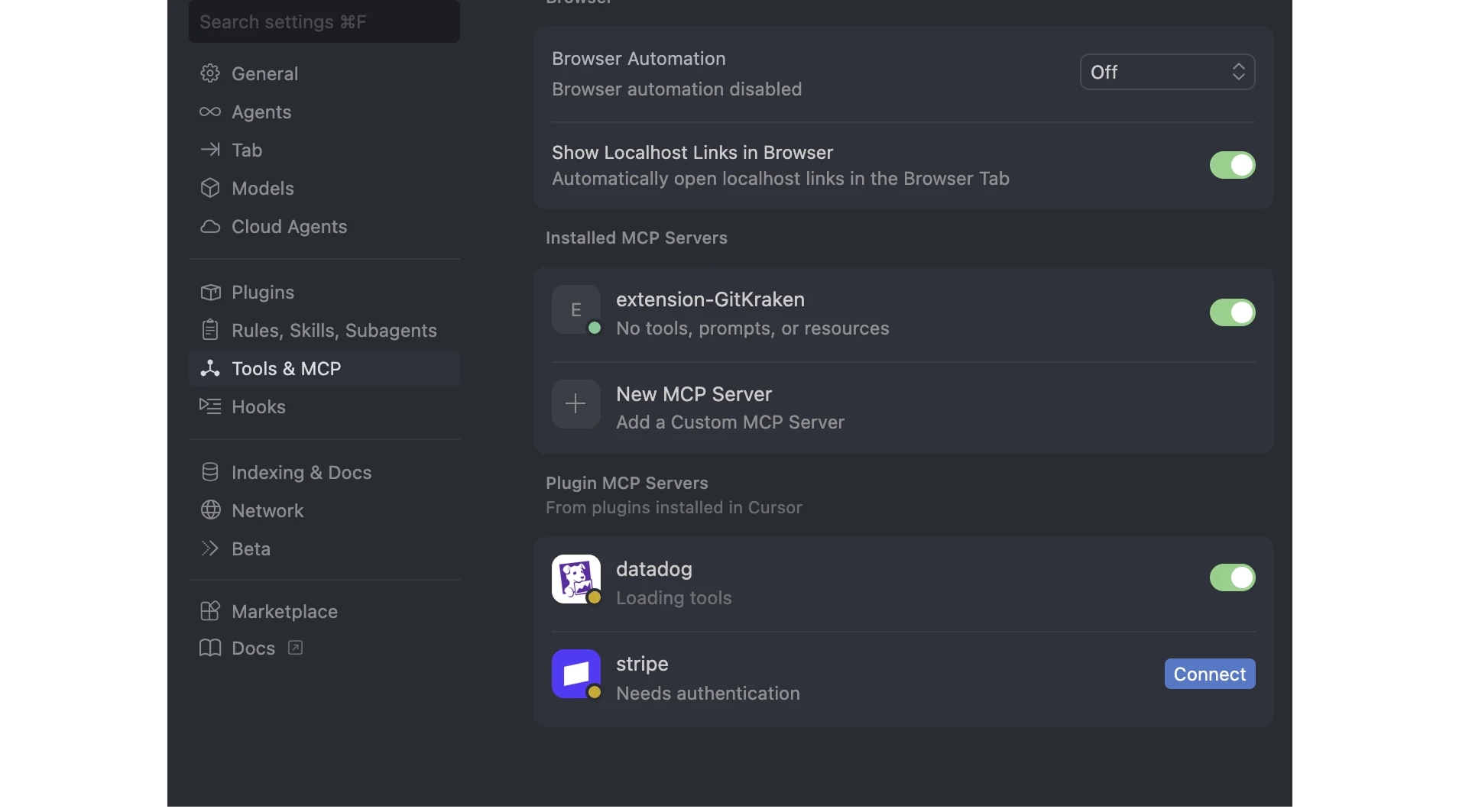
- Add the following configuration:

- Click Save.
- macOS: Cmd + S
- Windows: Ctrl + S
- Go back to Tools & MCP and click Connect on the Jibble MCP Connection.
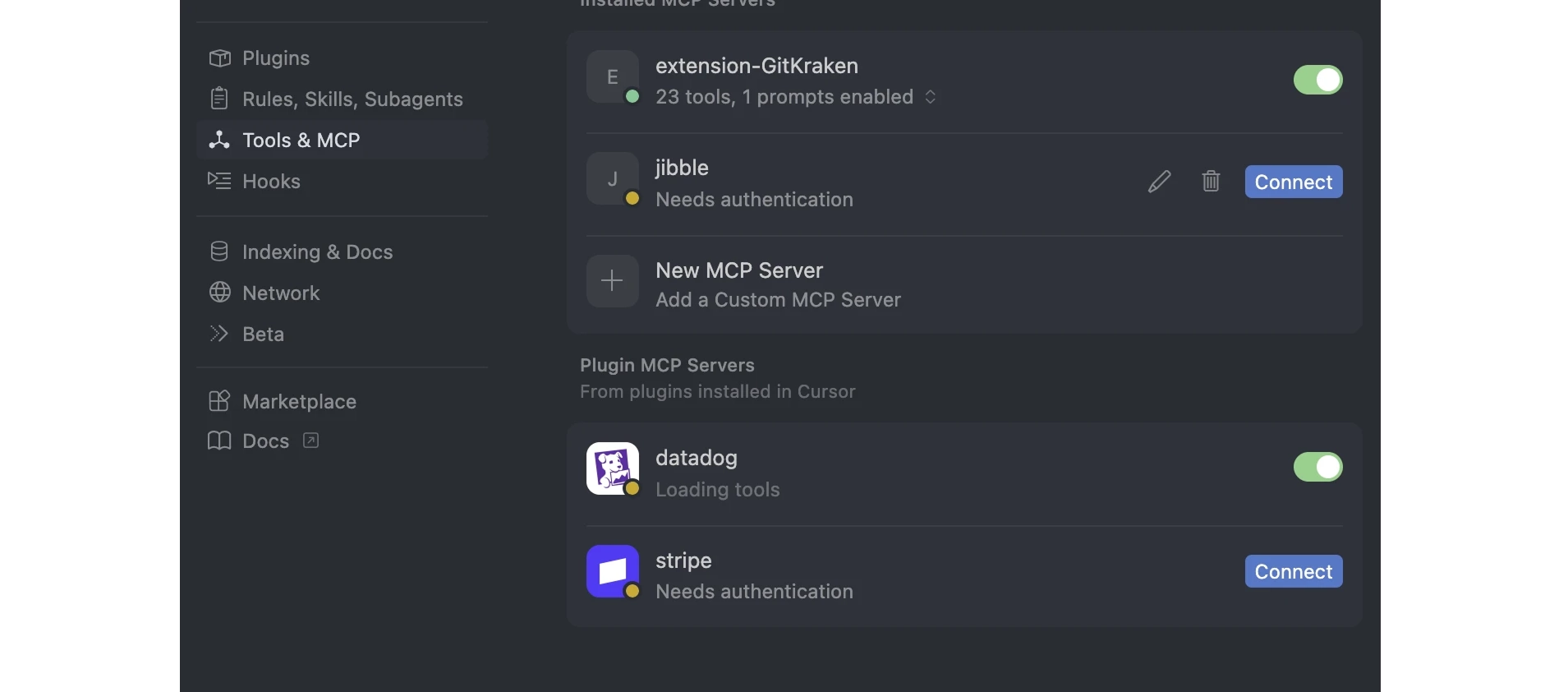
- Sign in to Jibble and authorize access.
Open the AI chat panel and try a prompt.
What you can do with Jibble using AI
Once connected, you can use natural language to interact with Jibble.
| Category | Example prompts |
| Time tracking |
|
| Timesheets & reports |
|
| Leave management |
|
| Workspace info |
|
| Managers & admins (role-restricted) |
|