
How to use Jibble’s AI Assistant
Get instant help, insights, and complete simple time tracking actions using Jibble AI, your in-app assistant.
Jibble’s AI Assistant brings AI time tracking directly into the app, helping you use Jibble more effectively. It can answer your questions, provide insights from your organization’s data, clarify error messages, and assist with simple actions like creating or editing time entries — all without leaving the app.
Note: Jibble AI is currently in beta and available to selected organizations. It is limited to Owners and Admins.
This article includes:
Using Jibble’s AI Assistant
- Log in to your Jibble account via the web app.
- In the menu sidebar, click Jibble AI to open the AI Assistant, then type your prompt to start asking questions and get instant help.
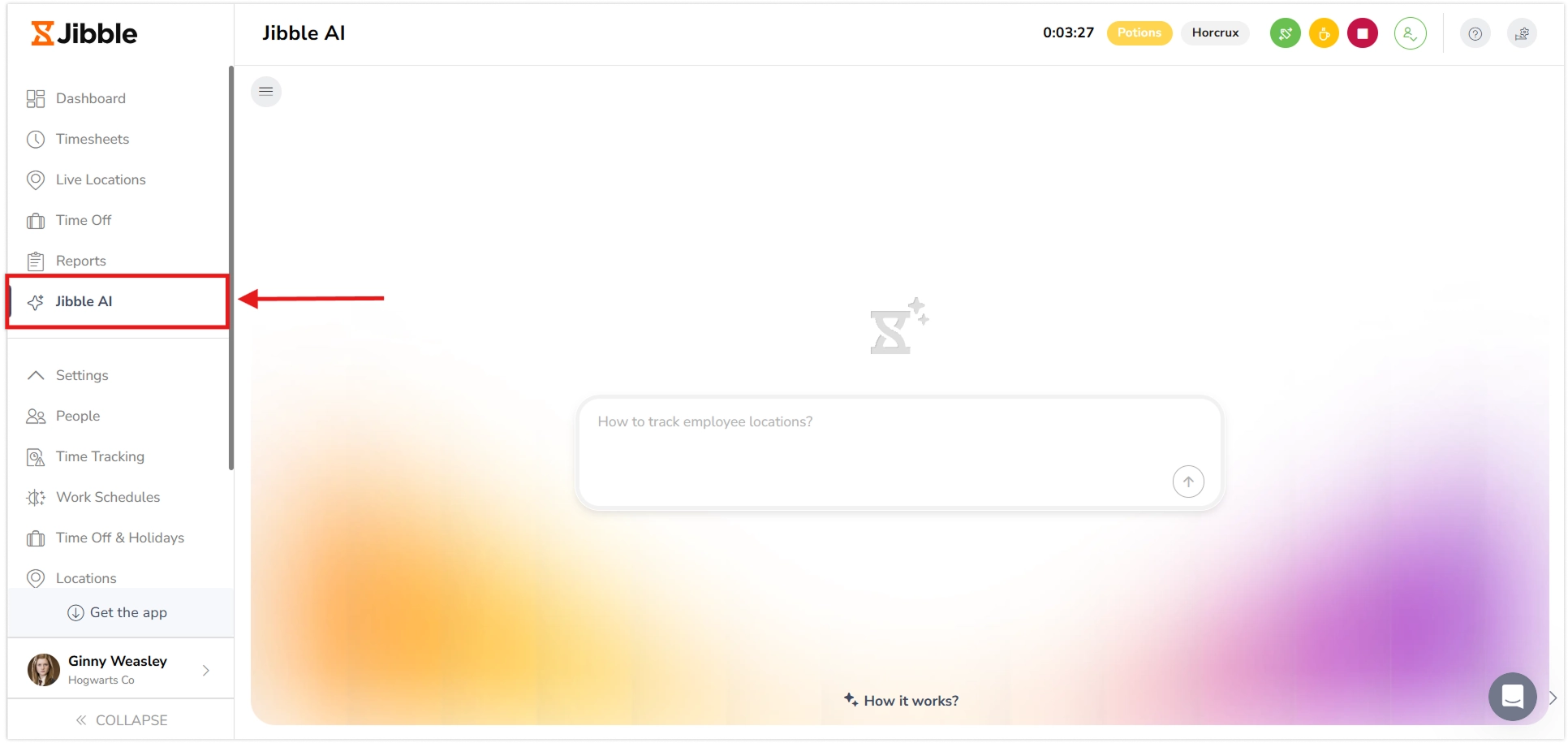
- Or click on the hamburger icon to open the sidebar, and click on + New chat to start a new conversation.
- After typing in your prompt, Jibble AI will analyze your request and provide a response in the chat.
- You can view and return to your past conversations from the sidebar.
- If your question requires access to organization data, you’ll be asked for permission before Jibble AI proceeds. Only the Owner of the organization can grant access.
- For any error messages you see, you can also click on Ask Jibble AI and it will explain what they mean.

💡Tip: You can also copy answers and provide feedback to help improve the Jibble AI.
▶️ Walk through the process here
What you can do with Jibble AI
Jibble AI is your personal AI time tracking assistant, you can ask it how to use features, get explanations, and also complete simple actions. You can phrase your questions naturally, just like you would to a teammate.
Getting help or explanations
- How do I approve a time off request?
- What is time rounding and how does it work?
- Why can’t I clock in from the desktop app?
Completing simple actions
- Apply time off for me — Share the dates and type of leave, and Jibble AI will help submit the request.
- Approve a time off request — Provide the team member and date, and Jibble AI will guide you through approval.
- Clock in / Clock out for me — Get help clocking in or out.
Viewing insights from your organization’s data
- Show me my team’s total hours this week — Get accurate totals using your organization’s data.
- Who worked the most overtime last month?
💡 Tip: Start your prompts with “How do I…”, “Show me…”, “Apply…”, or “Approve…” for the best results. Don’t forget to use specific date ranges like “last week, last month” for a more accurate answer.
If you’d prefer to speak to a human, you can simply request it in the chat, and Jibble AI will connect you with our support team.