
The definitive list:

- Free to use with unlimited users
- Simple interface that’s easy to navigate
- Project tracking for precise billing
- Optional activity monitoring features
- GPS and face recognition features for secure clock-ins
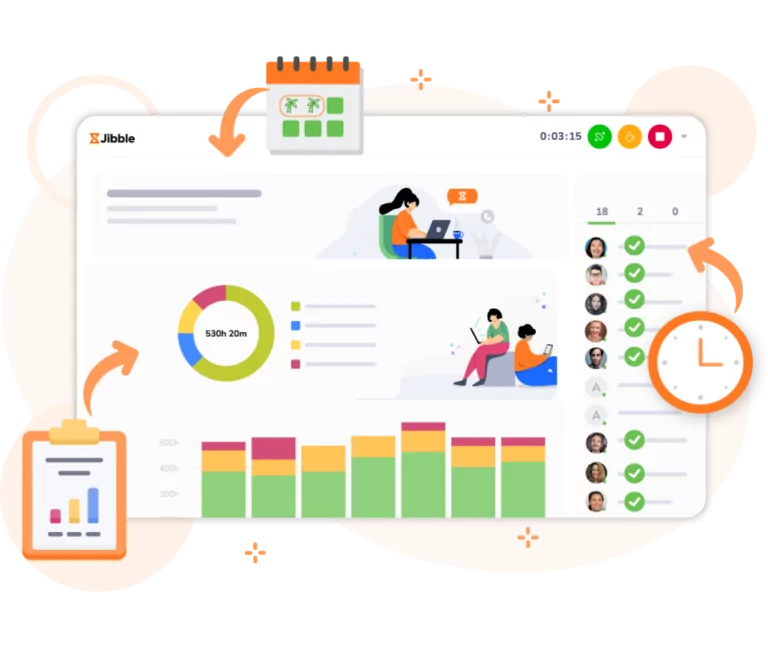
- Real-time productivity dashboards for instant insights
- Limited invoicing tools compared to dedicated software
- Less advanced project planning features
My team and I use Jibble every single day to track time, manage projects, and stay in sync no matter where we’re working from. It’s fast, accurate, and honestly, it just works.
With Jibble’s hybrid attendance management software, you can clock in from desktop, web, or mobile, or even start tracking time right from Slack or MS Teams.
The system automatically generates detailed timesheets that calculate total hours, breaks, and overtime with precision. Each entry can also be verified with GPS tags and face recognition to help avoid time theft or buddy punching.
Jibble also provides detailed attendance reports based on time records, helping you spot discrepancies in work hours, see how employees spend their time on tasks, and track absenteeism or punctuality trends.
For global teams, Jibble makes billing easier too. You can set billable rates in any currency, track work hours across time zones, and even export data straight to Excel, CSV, or payroll software like Xero, ADP, and Sage.
Jibble’s optional activity tracking can also help promote accountability while respecting user privacy. You can enable periodic screenshots to get better visibility into how your team works.
Jibble’s built to make time tracking as simple and intuitive as possible. And after personally testing a majority of the time tracking solutions in the market, I can genuinely say that nothing comes close to how seamless Jibble feels in daily use. And the cherry on top? It’s 100% FREE for unlimited users.

- Holistic 8-pillar wellness model
- Highly customizable, modular programs
- Data-driven personalization (HRAs, journeys, analytics)
- Strong enterprise-grade security and compliance
- Feature-rich platform can feel overwhelming at first
- Advanced setups often need admin or vendor support
Wellness360 is becoming a go-to option for organizations that want more than just a basic step challenge or points app to improve holistic well-being. It’s designed to give remote, hybrid, and on-site teams a single platform to improve well-being with recognition and feedback, while still fitting neatly into existing HR and benefits systems.
What stands out most about Wellness360 is how comprehensive yet structured it feels. It’s built around eight pillars of wellness: physical, emotional, social, intellectual, financial, occupational, environmental, and spiritual, supporting employees across all areas of their lives.
Employees can also use the software to complete health risk assessments, follow personalized health journeys with daily tasks, and join population wide challenges and campaigns that nudge them toward sustainable behavior change.
The engagement and rewards layer is where a lot of the day-to-day magic happens. Teams can roll out company-wide or group-specific wellness challenges, tap into an on-demand content library with instructor-led workouts, and keep motivation high with gamified points that employees earn for healthy actions and participation.
Those points can then be redeemed across flexible reward categories, including lifestyle spending accounts, gift cards, and branded merchandise, while peer-to-peer recognition and automated milestone celebrations help reinforce a positive culture.
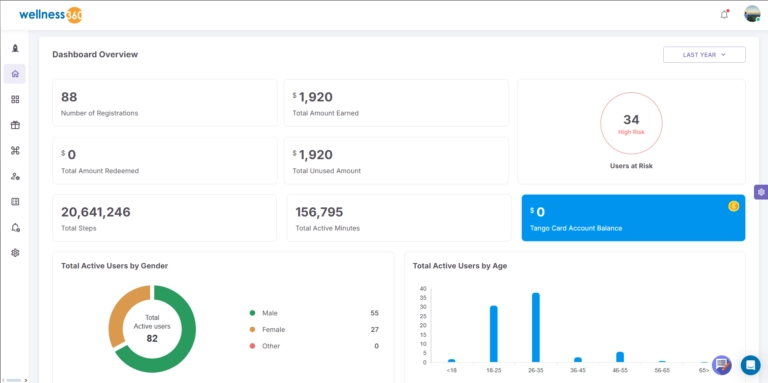
For HR, IT, and people leaders, Wellness360 also doubles as a powerful data and automation engine. It connects with 200+ HR tools and activity trackers like Fitbit, Garmin, Apple Health, and Google Fit, pulling data into a unified platform that powers real-time analytics, engagement dashboards, and pulse surveys.
Combined with enterprise-grade compliance and certifications such as HITRUST r2, NCQA, HIPAA, SOC II Type 2, ISO 27001, GDPR, and TX-RAMP, it gives organizations confidence to run robust wellness programs without compromising on security or privacy.
For teams willing to invest in the setup, Wellness360 can serve as a long-term, central hub for employee well-being rather than just another short-lived perk.

- Intuitive and easy to use
- Organized channel-based communication
- Custom workflow automations
- Seamless experience across desktop, web, and mobile
- Alerts can be overbearing
- The free plan is very limiting
Slack has become the go-to communications tool for remote and hybrid teams around the world. My team and I personally love it.
The platform combines communication, project management, app integrations, and AI into one solid tool, reducing the need to switch apps for different tasks.
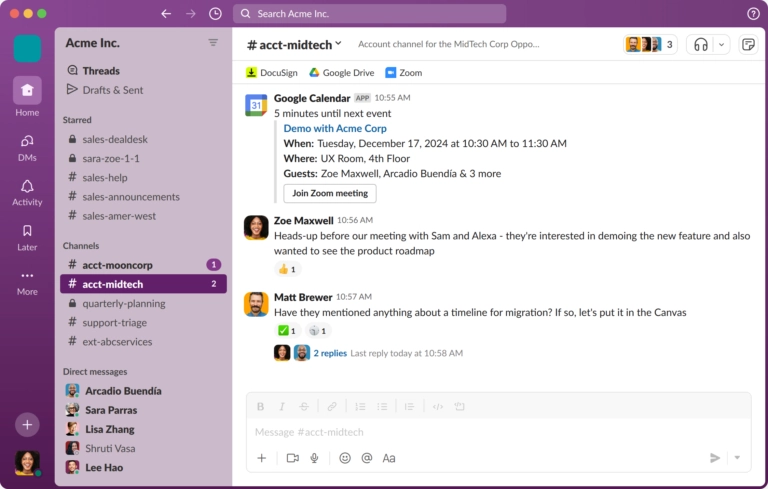
Teams can organize conversations into channels, keeping discussions focused by project, team, or topic. It’s really easy to start a huddle — an audio or video call — whenever you need to talk to a team member about anything. Slack’s messaging feature also allows users to send audio or video messages, making communications transparent and easier.
Beyond communications, Slack also offers a bunch of task management tools, like to-do lists and canvases for collaborative notes, each with a variety of pre-built templates for common use cases. Tasks can be assigned to teammates, complete with deadlines and notes, which keeps everyone accountable and aligned.
Another powerful feature in Slack is workflow automations. Whether it’s a simple reminder or a recurring task that has more complexity, workflows can handle it. It can even automate tasks like updating Google Sheets or Salesforce, without needing to know any code.
Slack also offers an integrated AI that can auto-translate notes, take meeting notes, and even summarize channel messages if you’ve got 50+ in a row after a day off. That’s particularly handy for managers to always stay on top of team operations and communications.
And what ties this all together is Slack’s extensive integrations with tools like Google Suite, Trello, Notion, Asana, and more, which is great for managing files, calendars, and project updates without ever leaving Slack.
However, while Slack’s communication and task management tools are genuinely impressive, most of the advanced features are locked behind the paid plans. The free version is pretty limited.
You only get access to channels, audio and video messaging, a 90-day message history, and one-on-one huddles, along with basic data security. No AI features, no advanced automations. It’s fine for small teams or casual use, but the free plan can quickly feel restrictive if your requirements grow.

- Cost-effective option for startups and small agencies
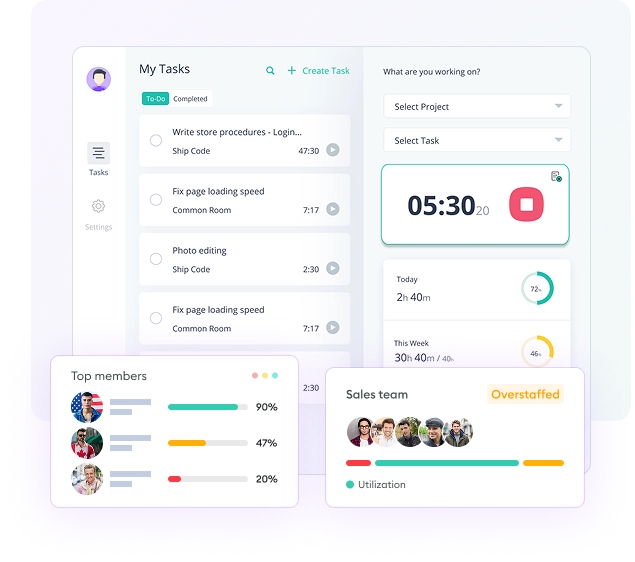
- Real-Time "Live Feed" for managers to see who is online and working
- Apps, URL, and activity level tracking
- Simplified hourly rate calculations for remote teams
- Time and cost setting customizations for projects
- App integrations are still in development
- The mobile app lacks advanced employee monitoring
Apploye is a strong remote employee monitoring option for hybrid and remote companies that need deep visibility into remote work patterns.
Alongside time tracking options, Apploye offers many employee monitoring features to track what employees do during work hours. A standout feature here is the Live Feed. It provides a real-time “active view” of your entire workforce.
And this feature helps managers of hybrid teams to always stay in the loop. It doesn’t just log hours; it tracks intensity. It helps identify whether a team member is engaged or not. Apploye calculates activity levels to see if anyone is struggling with the workload.
For agencies billing by the hour, the software’s screenshot monitoring is a game-changer. Apploye’s “Power” plan even offers instant screenshots for immediate verification. It promotes a high level of accountability and ensures that billable hours have proof.
Beyond tracking, Apploye’s built-in payroll and invoicing system is great for global teams. You can set hourly rates for different regions, approve timesheets, and handle payments.
Apploye offers one of the most comprehensive and stable toolsets on the market for employee monitoring. However, their mobile app does not offer the same range of monitoring features, and their integrations with other work platforms are still somewhat limited.

- UI design is great
- Easily customizable workflows
- AI features are handy for organizing tasks
- Features can be initially hard to navigate
- Less responsive when dealing with large databases
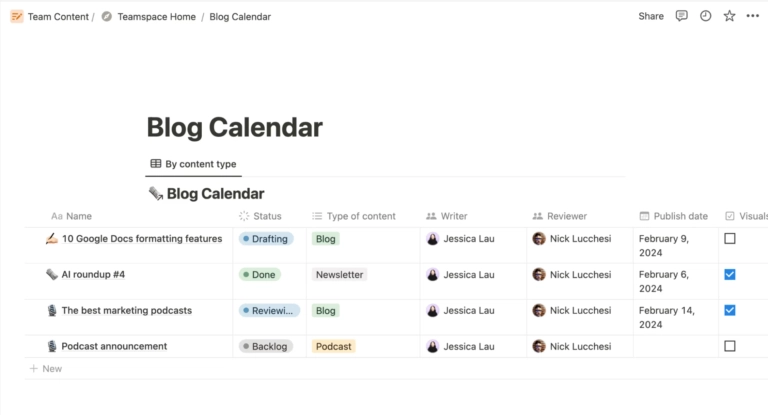
There’s so much you can do with Notion: from project management and knowledge documentation to team collaboration and content planning. But what I think makes it useful for remote and hybrid teams is its workspace automation.
Notion’s use of AI is commendable. I was particularly impressed at how it could transform my messy ideas into polished task-lists or full-blown project plans in seconds, even tagging what it created so I can tell AI-generated items from my own.
Then there’s the Notion Agent, which understands your workspace, automatically reschedules timelines when deadlines move, and drafts updates for the team.
With its customizable databases, templates, and Kanban boards, Notion can give hybrid and remote teams the structure they need for their workflows.
But Notion can be a bit intimidating for first-time users — myself included. There’s just so much you can do that it’s hard to know where to start. On top of that, many users have noticed that it can get noticeably slower and less responsive when working with larger databases.

- Includes features for professional services firms
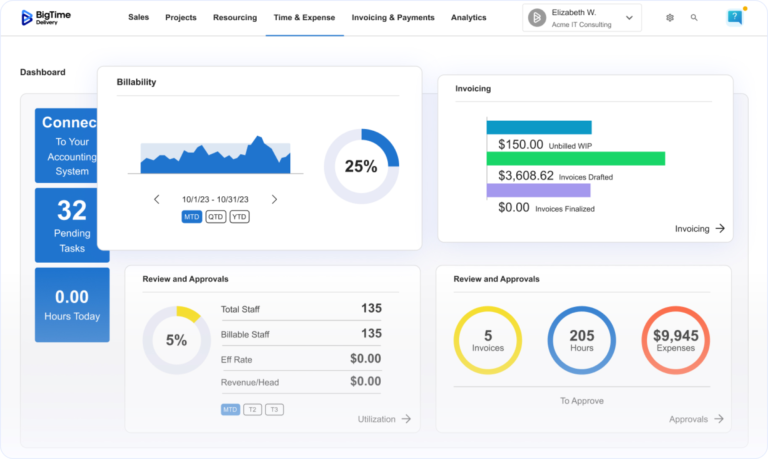
- Real-time visibility into budgets, utilization, and profitability
- Skills-based resource management and capacity forecasting
- Automated time capture and billing
- Integrations with QuickBooks, Sage Intacct, and Salesforce
- Configurable reporting across projects and people
- Initial configuration for complex billing structures takes time
- Advanced reporting requires time to setup to match firm-specific workflows
For professional services firms running hybrid and remote teams, staying profitable across dispersed projects is harder than it looks.
BigTime is a PSA platform built specifically for this challenge, giving consulting, engineering, IT, and other project-based businesses a single place to manage time, resources, projects, and billing, no matter where the work gets done.
What stands out most is how tightly BigTime ties daily activity to financial outcomes. Your team logs time against projects from any device, and that data flows directly into budget tracking, utilization dashboards, and invoicing.
This gives principals and project managers real-time visibility into whether each engagement is on track to deliver the margin it promised.
Resource management is another area where BigTime earns its place on distributed teams. Managers can see resource capacity across the entire firm, assign people based on skills and availability, and forecast ahead before gaps become problems.
For hybrid teams where some staff are in the office and others aren’t, this kind of centralized visibility prevents the silent resourcing bottlenecks that reduce profitability.
BigTime also integrates with the financial and CRM systems professional services firms already use, including QuickBooks, Sage Intacct, NetSuite, and Salesforce. That means your hybrid team isn’t toggling between disconnected tools; project data, financial data, and client data stay in sync across the platforms in everyday use..
For professional services firms that have outgrown spreadsheets and generic project tools, BigTime gives every member of a distributed team the context they need to do their best work and gives leadership the real-time data to make confident decisions on utilization, forecasting, and growth.
- Integrates well with other communication platforms
- Easy to set up
- Flexible project views make tracking easier
- Slow customer support
- Reporting feels limited
- Notifications can be disruptive
There are tons of project management tools out there, but Asana easily stands out, especially for remote and hybrid teams. It’s designed to keep everyone aligned, no matter where they’re working from.
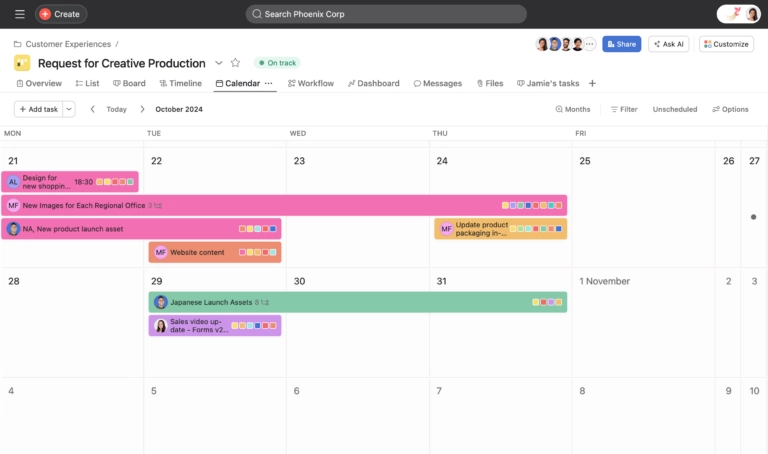
I really like how flexible Asana is. The layout is clean, intuitive, and ideal for tracking complex projects without getting lost in clutter.
Each project can be broken down into bite-sized tasks and assigned to team members with deadlines, and you can choose to view everything in different formats like Kanban boards, Gantt charts, lists, timelines, or calendars, depending on what fits your workflows the best.
Asana’s customizable ‘Home’ view is also a win for remote and hybrid teams; you can customize the app to make it your own by rearranging sections, adding widgets, and even choosing your own background, so you can see everything that matters in your own personalized space.
Asana’s Inbox helps teams stay focused by filtering what matters, pausing distractions, and following through on updates without leaving their workspace. Its integrations with popular communication apps like Slack and Zoom are also very useful for team communication to stay in sync.
Overall, Asana has the key features for project management nailed, simple enough for anyone to pick up, but its reporting feature is a bit limited. Users need to pull up information for reports manually instead of the software doing it for them.

- File sharing is quick and seamless
- Fast response rate from customer support
- Works smoothly across different devices
- Connection speed can fluctuate
- Interface is a bit dated
When you’re juggling between multiple devices, locations and internet connections in remote or hybrid work, you can’t exactly call the IT team over to your desk for support.
This is where TeamViewer proves to be handy.
After using it across a mix of office desktops, home laptops, and mobile devices, what stands out most is how seamless and secure TeamViewer feels.
Accessing another computer with TeamViewer is simple, even without the need for the system on the other end to install any software.
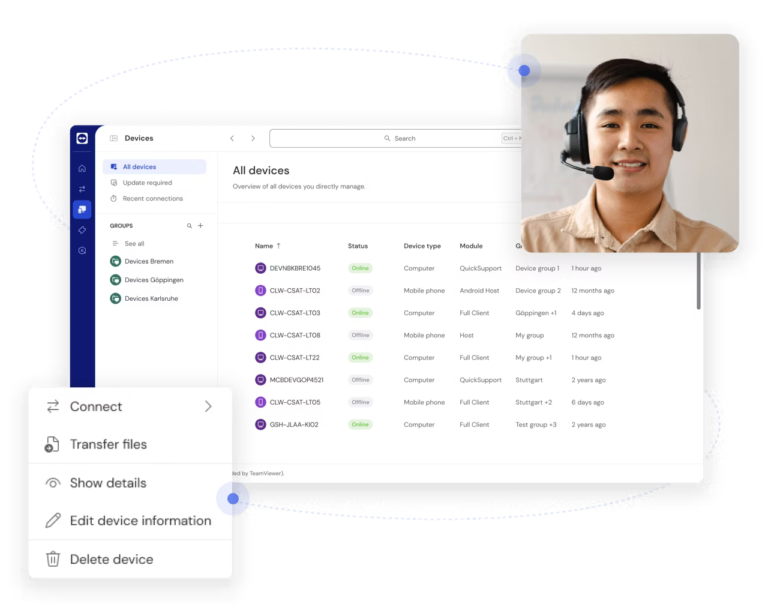
Once set up, TeamViewer allows you (or your support team) to see your screen, control your device, and fix issues in real time. It works across computers, tablets, and phones, whether you’re on Windows, Mac, Android, or iOS.
The software can also access and maintain unattended devices like POS terminals, kiosks, or remote displays. If a device runs into an issue, TeamViewer can send alerts right away so IT can step in before downtime becomes a problem.
TeamViewer’s central dashboard makes managing devices feel effortless. It gives a real-time view of all systems, sends alerts when something needs attention, and flags outdated software before it causes problems.
Automation is another standout. Support tickets, connection logs, and AI-generated summaries streamline IT work and make documentation painless. Over time, these insights help teams spot recurring issues and fix them faster.
Security is built into every layer, with encryption, two-factor authentication, and Malwarebytes-powered protection. For hybrid and remote teams, that peace of mind matters, especially when people are logging in from home or public networks.
While the interface feels a bit dated and connections can occasionally lag, TeamViewer helps distributed teams stay connected and productive without adding extra work for IT. It’s the kind of tool that quietly keeps everything running in the background.