
Connecting Zapier linked integrations with Jibble
Integrate our time tracking software with your favorite apps.
Connect our time tracking software with the tools you use everyday via Zapier.
Zapier transfers info between your apps automatically with workflows called ‘Zaps’, so you can automate repetitive tasks with no developer assistance.
What you can automate with Zapier
-
Employee data
-
Clock in
-
Clock out
-
Breaks
-
Invite new team member
-
Time entry
-
Timesheets
-
Groups
-
List of Activities
-
List of Projects
-
List of Clients
Examples of automations you can create
-
Clock in from Jibble when a Google calendar event starts
-
Create a new event in Google calendar when you clock in from Jibble
-
Create new timesheet entries in Jibble when Google calendar starts
-
Add new Jibble time entries to Google Sheets
-
Add new Jibble projects to Google Sheets
-
Add new Jibble activities to Google Sheets
-
Create projects in Jibble when you create new Asana projects
-
Create projects in Asana when you create new Jibble projects
-
Share time entries from Jibble in Slack
-
Adjust or Create Slack status when you start a new time entry in Jibble
Connecting Zapier linked integrations with Jibble
In this flow, monday.com is used as an example of an app that integrates with Jibble via Zapier.
-
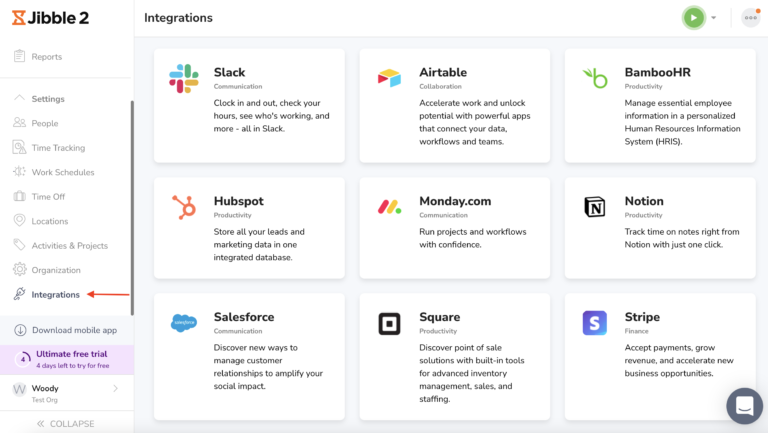
Login to Jibble and click on the Integrations tab from the side navigation menu.
-
Click on the app you would like to integrate with (eg. monday.com) on the list of the Integrations available.
-
For apps that can be linked with Zapier, you will see a button that integrates with Zapier. Click on this Integrate via Zapier button.

-
You will now be directed to Zapier where you can choose a Trigger in Jibble to initiate an Action in monday.com.
Note: Integrations via Zapier works both ways. You will also be able to choose a “Trigger” in your desired app (eg. monday.com) to initiate an “Action” in Jibble.
Read more about Zapier’s Triggers and Actions or contact Zapier’s support team.
-
After choosing your trigger and action, click on Connect these apps.
-
Click on the Jibble step in the editor view to sign in and connect your Jibble Account.
-
You will now be redirected to select an organization and allow access to your Jibble account.
-
Once done, your Jibble account will be connected to Zapier.
-
Click on the monday.com step and connect to monday.com.
-
You will be redirected to allow Zapier to access your monday.com account.
-
Fill in the API key which you will find in your monday.com account.
Note: For some apps, API keys are not asked for. If this happens, proceed to the next step.
-
Your account will be connected to Zapier.
-
Customize and test your Zaps.
-
Review and turn on your Zap. All set!