
One problem I’ve seen lots of teams struggle with after managing countless projects is this: nobody knows where their time goes. The workweek zaps by in an instant, deadlines slip, and before you know it, budgets start spiraling out of control.
But here’s the thing, this is not because the team isn’t working hard. It’s because visibility into how their hours are spent is incredibly poor unless you’re constantly staying on top of timesheets manually (which is really tedious!) or you use time management software.
These software are designed to help you keep track of how time is spent across tasks, projects, and people, so you can actually course-correct before things go sideways.
However, the market is flooded with time management software, but only a handful of tools solve the visibility problem, and those are the ones I’ve listed here.
9 Best Time Management Software
|
||
| Software | Pricing | Free Plan |
| Jibble | $0.00 | ✅
FREE FOREVER for unlimited users |
| Clockify | $3.99 per user per month | ✅ Free for up to 5 users |
| Hubstaff | $4.99 per user per month | ❌ |
| SageHR | $6.00 per user per month | ❌ |
| My Hours | $4.00 per user per month | ✅ |
| QuickBooks Time | $8.00 per user per month | ❌ |
| Wrike | $10.00 per user per month | ✅ |
| Celoxis | $10.00 per user per month | ❌ |
| Basecamp | $15.00 per user per month | ✅ |
|
Note: The table shows entry-level rates and may not accurately reflect the overall value of the software. To gauge real value, consider each platform’s features, base fees, and any limits on the number of users. |
||
Best Time Management Software by Use Case |
||
| Best Value for | Software | Why It’s a Good Fit |
| Teams needing a cost-effective time management software | Jibble |
|
| Freelancers / Solo contractors | Clockify |
|
| Remote or distributed teams needing productivity tracking | Hubstaff |
|
| HR-focused teams that need time management | Sage HR |
|
| Small teams needing flexible clock-in options | My Hours |
|
| Teams already using QuickBooks | QuickBooks Time |
|
| Teams needing structured workflow automation | Wrike |
|
| Project-driven organizations managing multiple teams and budgets | Celoxis |
|
| Teams focused on collaboration | Basecamp |
|
Jibble – Best Time Management Software for All Teams
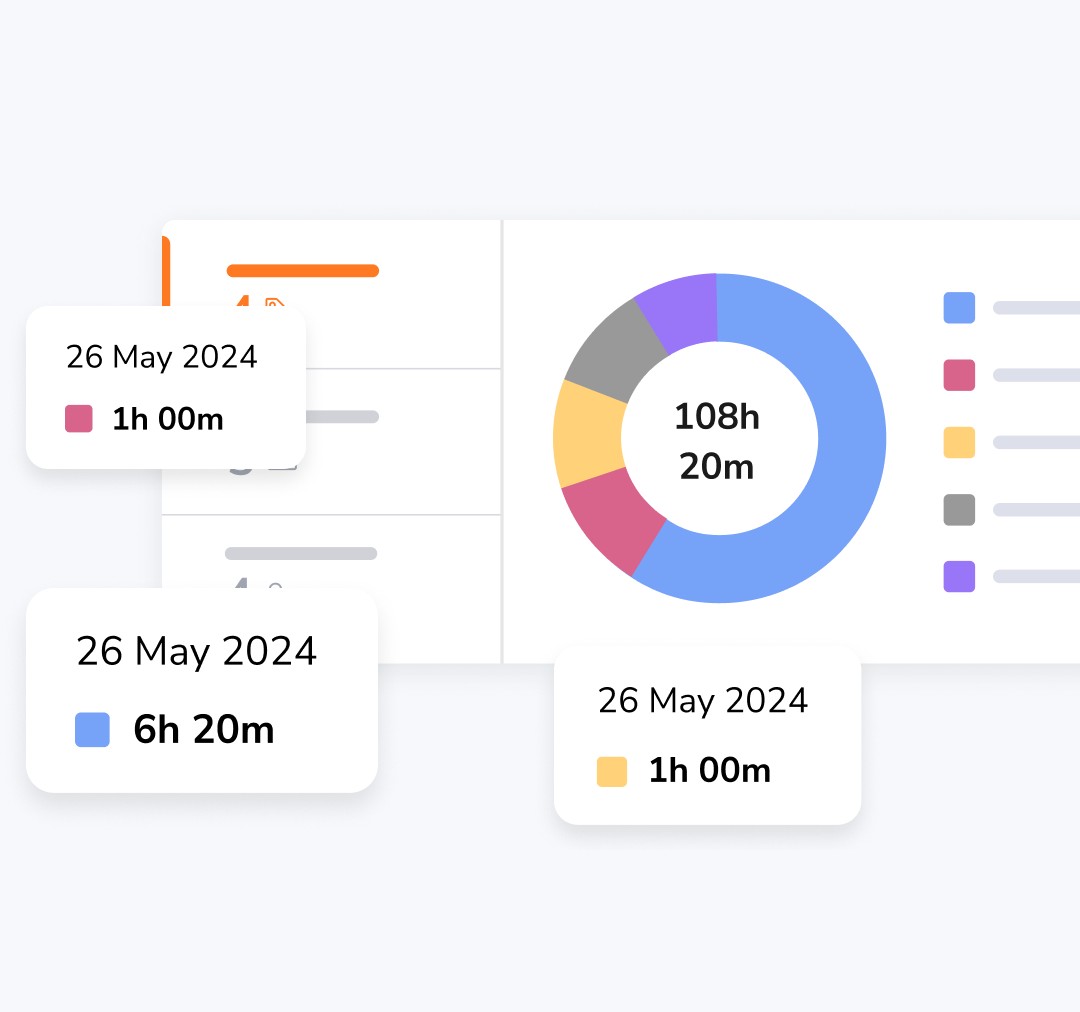
Jibble is the highest rated time management software on Capterra, which you can use to track time with a click from any device and choose an activity or project you want to track time for.You can add as many projects and activities as your team needs, there’s no limit.
With focused project time tracking, you know exactly where your hours are going and plan your resources more effectively.
All time entries automatically sync to timesheets, which you can filter by team member, project, client, or date range. These timesheets can also be exported in different file formats for recordkeeping or payroll.
Moreover, Jibble’s dashboard gives you instant insights into how your team’s time is distributed so you can identify bottlenecks or track project progress in real time.
Jibble also integrates with a host of applications from project management apps like Asana and ClickUp, to communication platforms like Slack and Microsoft Teams. These integrations make it easy to connect Jibble to your existing workflows.
On top of all that, Jibble is equipped with GPS tracking and facial recognition for attendance verification as well as employee monitoring features like screenshots if you need to keep a closer eye on team activity.
With a balance of power and simplicity, Jibble is one of the best time management software for teams who want smart, accurate time tracking.
Pricing:
- Free Forever for an unlimited number of users
Available on:
Desktop, Mobile, Kiosk, Chrome Extension, Web
Ratings:
- Capterra: 4.8/5
- G2: 4.8/5
- Play Store: 4.7/5
- App Store: 4.8/5
Pros:
- Free for unlimited users
- Unlimited projects and clients
- Detailed time and attendance reports
- Track hours by project or activity for billable work
- GPS tracking and geofencing
- AI-powered face recognition attendance
- Real-time project insights via intuitive dashboards
Cons:
- Mobile app sometimes takes time to sync
- Could use more flexibility when exporting reports
“Jibble is super easy to use and helps me track my work hours effortlessly. I really like how clean and intuitive the interface is — everything just makes sense. The ability to clock in from my phone or computer is great, and the timesheets automatically organize my hours by day and project. It saves me a lot of time” – Helena F.
(Source: Capterra)
“Sometimes the mobile app takes a moment to sync, but overall it’s a reliable, accurate and efficient tool.” – Rahul K.
(Source: Capterra)
Wrike – Best Time Management Software for Workflow Automation
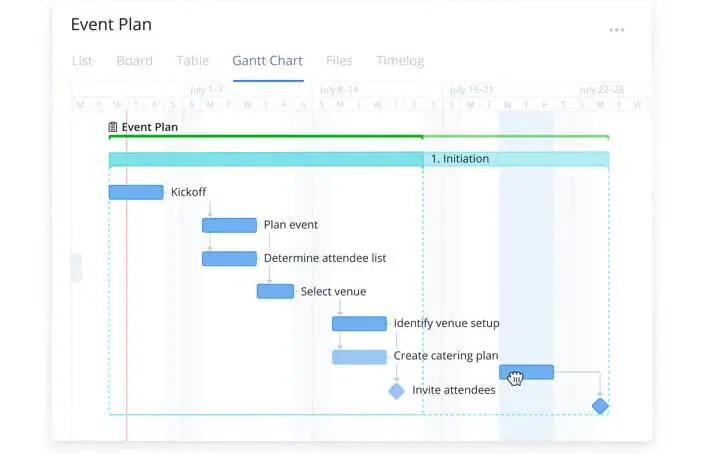
Photo from Wrike
Wrike is a time management software that helps teams organize tasks and track progress with workflow automation.
With Wrike, you can manage time in multiple ways using Gantt charts, boards, tables, and dashboards. Switching between them is quick which makes it easier for teams with different preferences to stay aligned. The dashboards are customizable and especially practical for tracking real-time project progress and spotting delays.
Automation is another major benefit of using Wrike for time management. It lets you set up rules to handle repetitive tasks, route incoming requests, and organize work as it moves from one stage to another.
The built-in AI tools add some convenience as well, offering summaries and suggestions that give you insights into your workflow.
To see where your work time is actually going, Wrike has time tracking tools that let you log hours manually or using a timer. These time entries are set up into timesheets and managers can review and approve them anytime.
As a bonus, Wrike also has some great templates to organize your projects, set schedules, and create project phases, which helps with time management.
However, Wrike is not the simplest tool on the market; the features are hard to navigate and the interface feels cluttered. Many of these features are also locked behind their paid plans which isn’t great for small teams looking to stay on the free version.
Pricing:
- Free Plan: Yes
- Pro Plan: Starts at $10 per user per month, billed monthly
Available on:
Desktop, Mobile, Browser Extension, Web
Ratings:
- Capterra: 4.4/5
- G2: 4.2/5
- Play Store: 4.4/5
- App Store: 4.6/5
Pros:
- Powerful visual tools
- Customizable workflows and dashboards
- Seamless project collaboration
Cons:
- Many key features are locked behind the premium plans
- Offline access is limited
- Mobile app is slow and hard to navigate
“I like the flexibility in Wrike. I can view tasks in different views. It’s real time updates, Gantt charts make tracking task effortless.” – Sampad M.
(Source: Capterra)
“Its steep learning curve and cluttered interface can be overwhelming for new users. The platform’s best features are locked behind expensive premium plans, making it less ideal for small teams. Offline access is limited, and the mobile app lacks the functionality of the desktop version.” – Toniya T.
(Source: G2)
Clockify – Best Time Management Software for Budget Tracking
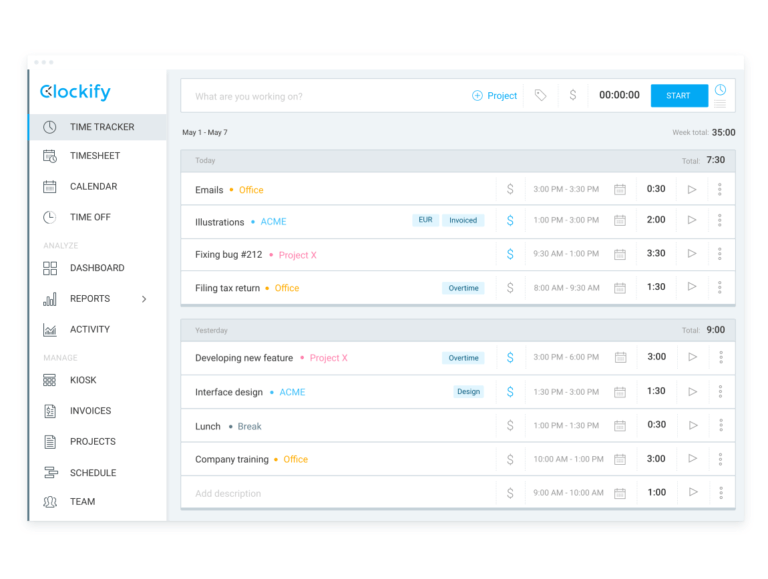
Photo from Clockify
Clockify’s time management software makes it easy to plan time usage, making it handy when you’re juggling work capacity, schedules, and shifting deadlines.
Setting up budget tracking with Clockify is easy: you can add estimates, set budgets, bring in your team, and you’re off. From there, the scheduling tools can be used to manage time by assigning tasks, planning shifts, and mapping out workloads.
What I appreciate most is how Clockify ties all of its time management features together. You build the schedule, track the actual hours, and then use that data to forecast timelines and analyze progress.
Its scheduled-vs-tracked view is especially useful when you’re trying to spot over-allocation or creeping delays before they turn into real problems.
Milestones, recurring schedules, work capacity limits, and overtime safeguards all contribute to planning that feels grounded in reality rather than optimistic guesses.
Clockify also offers project tagging which makes it easy to manage time by adding custom tags to projects and tasks. This lets you group and filter projects so you can find the data you need fast.
Its calendar view makes it easy to see everything in one place, and being able to kick off tasks directly from there is a nice touch.
That said, Clockify’s mobile version can be hit or miss. Some users report syncing delays with other platforms, login hiccups, and occasionally missing or unsaved time entries.
Pricing:
- Free Plan: Yes, for up to 5 users
- Paid Plan: Starts at $3.99 per user per month, billed annually
Available on:
Desktop, Mobile, Browser Extension, Web
Ratings:
- Capterra: 4.8/5
- G2: 4.7/5
- Play Store: 4.4/5
- App Store: 4.6/5
Pros:
- Project tagging makes it easy to organize tasks
- Easy to organize and label projects
- Option to use a timer or manually input entries
Cons:
- Some users experience login difficulties on mobile
- Instances of missing or unsaved time entries
- Approvals could be more streamlined
“Clockify is such an easy program to use for keeping track of your time. You can switch from “stop watch” mode to manual entry really easy and you can also label the different projects for each time recorded too which makes it easier to keep track if you are someone who clocks into multiple different projects like me.” – Sarah J.
(Source: Capterra)
“One of the areas that needs further improvement is approvals, both for time and time off requests as well as for expenses. Need the ability to route the approval to either a Team Manager or Project Manager (should be configurable when setting up the project). Also users should not be able to self approve time and time off requests.” – Abhishek G.
(Source: Capterra)
Celoxis – Best Time Management Software for Project Portfolio Management
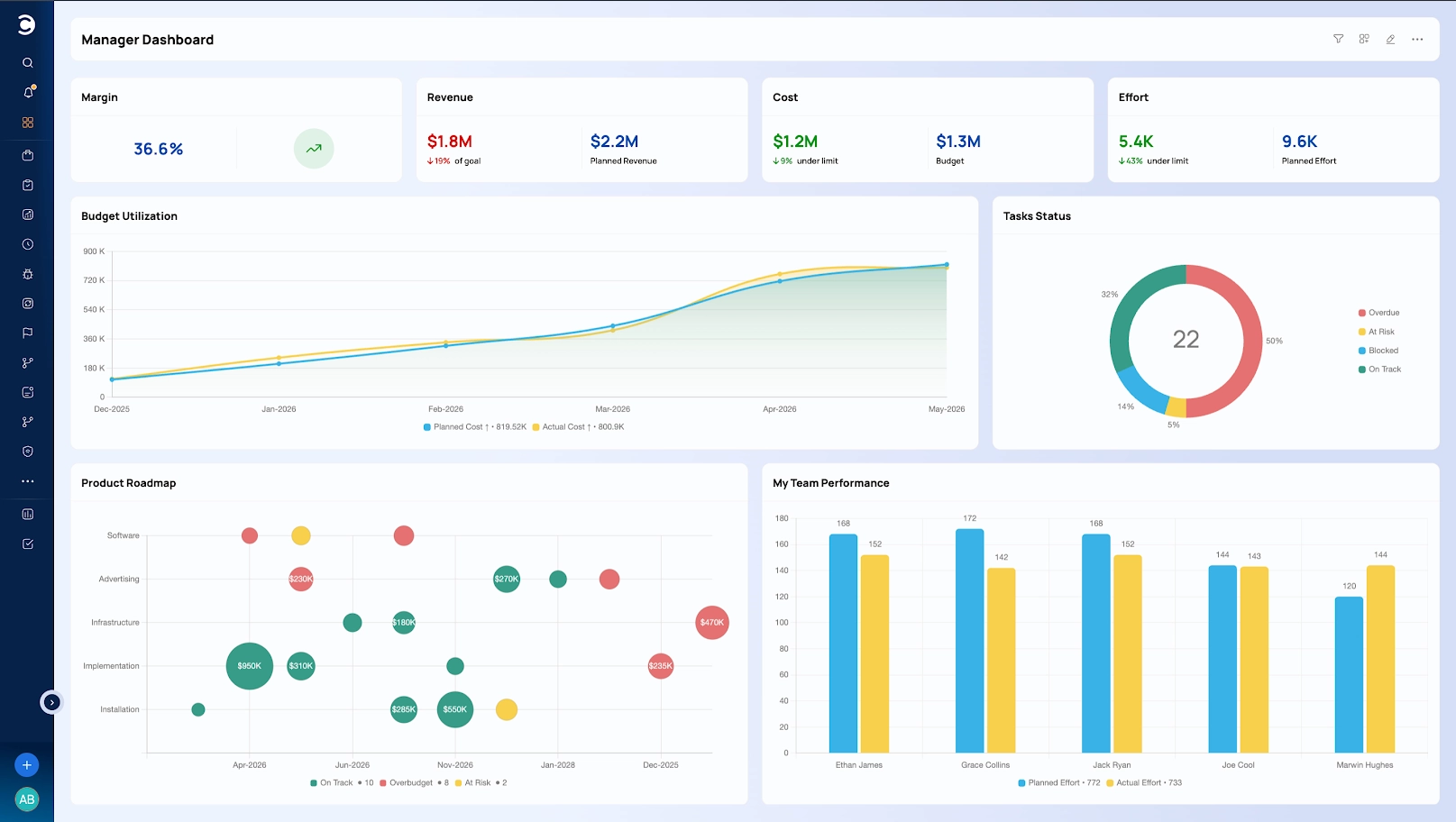
Photo from Celoxis
Celoxis is a project and portfolio management platform with strong time management features for teams that need more than basic time tracking.
With Celoxis, teams can track time through daily or weekly timesheets, manage billable and non-billable hours, and submit time entries for approval.
As a complete project management tool, it helps managers review timesheets, compare planned vs actual effort, and understand where team time is actually going across projects.
What makes Celoxis different is that time tracking is directly connected to project planning, resource management, budgets, and profitability.
Instead of using separate task management software, project tracking software, or basic PM tools, teams can manage schedules, workloads, tasks, budgets, and time in one place.
Celoxis also includes Gantt charts, dashboards, workload views, capacity planning, custom reports, and project financial tracking. This makes it a strong fit for organizations needing software for managing projects, project planning software, program management software, and broader business management software across multiple teams, clients, and portfolios.
However, Celoxis is not a simple standalone timer and is built specifically for project-driven teams, so smaller teams that only need a basic timer may find it more advanced than necessary.
Pricing:
- Free Plan: Yes
- Paid Plan: Starts at $10 per user per month, billed annually
Available on:
Web
Ratings:
- Capterra: 4.4/5
- G2: 4.6/5
- Software Advice: 4.4/5
- Gartner Peer Insights: 4.5/5
Pros:
- Connects time tracking with projects, resources, and budgets
- Works as a full project management tool with time tracking
- Strong dashboards, reporting, and workload visibility
Cons:
- More complicated than basic time tracking or simple employee management software
- Setup may take time for teams with complex workflows
- Not ideal for freelancers and independent workers
“What stands out most about Celoxis is its ability to bring structure, visibility, and accountability to complex project environments. The platform offers a highly organized framework for managing tasks, resources, budgets, and timelines within a single ecosystem, which significantly improves operational efficiency.” – Sikha S.
(Source: Capterra)
“While the platform is feature rich and powerful, it can sometimes feel a bit overwhelming, especially for new users. Finding certain options, reports, or settings may take more clicks than expected, and it can take time to fully understand where everything is located.” – Gaurav G.
(Source: Capterra)
Quickbooks Time – Best Time Management Software for QuickBooks Users

Photo from QuickBooks Time
QuickBooks Time gives teams that already use QuickBooks an easy way to manage time by allowing them to create jobs and projects when spinning up new client work or field tasks.
The software provides a clear view of budgeted vs. actual hours, real-time progress updates, and job-site activity, which makes it easier to adjust timelines and resources, and geofencing reminders help prevent missed clock-ins or inaccurate timesheets.
I also liked how QuickBooks ties communication features to time management.
Teams can share notes, photos, and quick updates in the activity feed, cutting down on scattered messages and helping everyone stay aligned. It’s lightweight but effective.
The system itself is easy to navigate, though customer support is often cited as a weak point when things do go wrong.
QuickBooks Time’s custom reports make it easy to understand job costs, productivity, and payroll needs, while alerts for overtime or schedule changes keep projects on track.
Paired with the mobile app, it creates a reliable, easy-to-manage system for staying on top of project time and performance.
Just keep in mind that all of this comes at a higher price point, with base fees that can feel steep for smaller teams.
Pricing:
- Free Plan: No
- Paid Plan: Starts at $8.00 per user per month + $10.00 base fee per month
Available on:
Desktop, Mobile, Web
Ratings:
- Capterra: 4.7/5
- G2: 4.5/5
- Play Store: 4.3/5
- App Store: 4.6/5
Pros:
- Easy to set up new jobs and projects
- Detailed project insights and timelines
- Seamlessly connects with other QuickBooks products
Cons:
- Expensive pricing with base fees
- Limited customizations
- Mobile app freezes and stops functioning
“I like how easy it is to navigate! There are great visual aspects as well as the different reports being categorized in a way that makes sense.” – Emily D.
(Source: Capterra)
“App does experience glitches and freezes. Overtime tracker doesn’t always work. A little pricey. Mileage tracking is a separate cost. Cannot clock in to multiple jobs.” – Marcus S.
(Source: Capterra)
Hubstaff – Best Time Management Software for Productivity Tracking
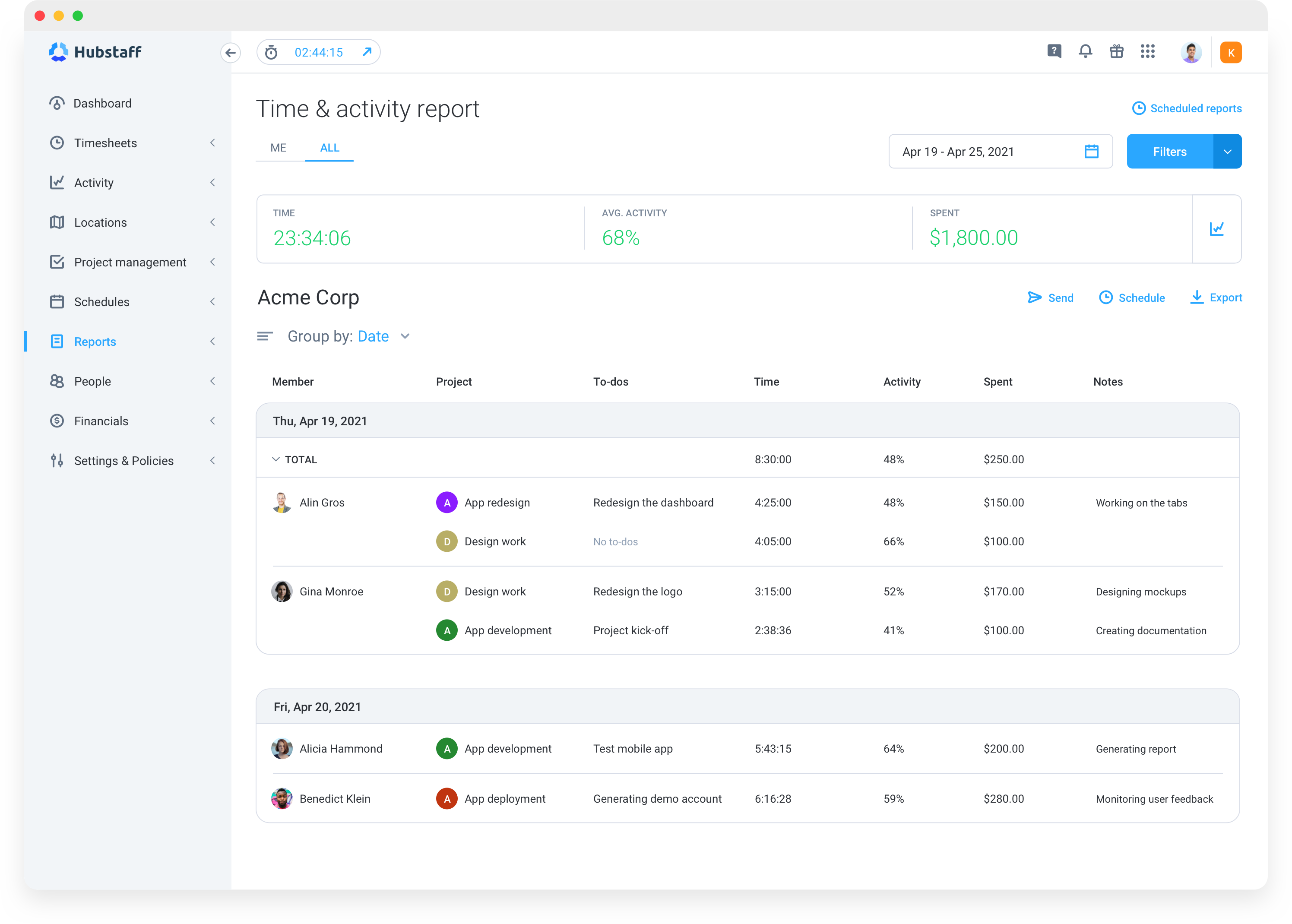
Photo from Hubstaff
Hubstaff is a good time management software for remote teams that need to track employee productivity.
The setup is easy, and the interface is user-friendly enough that teams can get started without much onboarding. You can see how time is spent and track productivity with mouse and keyboard activity tracking, app URL usage reports, as well as optional screenshots.
Hubstaff can also guess if someone is using a mouse jiggler or running scripts to fake activity; the software picks up on it and flags it.
Attendance tracking and shift scheduling are built in, too, so you can see who’s working, when they’re working, and how that aligns with productivity levels.
Some of the monitoring features can be genuinely helpful here, though the productivity and idle-time tracker isn’t always accurate, and when it misreads activity, it can end up deducting time unfairly from employees.
Users also report that Hubstaff’s customer support is not easily accessible on standard plans, and minor mobile glitches and occasional login issues can also interrupt workflows.
Pricing:
- Free Plan: No
- Paid Plan: Starts at $4.99 per seat per month, billed annually (minimum of 2 seats)
Available on:
Desktop, Mobile, Browser Extension, Web
Ratings:
- Capterra: 4.6/5
- G2: 4.5/5
- Play Store: 4.1/5
- App Store: 4.5/5
Pros:
- Easy set up and user-friendly interface
- Helpful monitoring features
- Good reporting and budget management
Cons:
- Log in issues on mobile
- Inaccurate idle time tracker that results in deducted time from employees’ hours
- Customer support is hard to access for non-VIP clients
“Overall, HubStaff is great for managing trackable, billable time for client projects. It’s easy to manage project budgets and also have proof-of-delivery for client projects.” – Jay D.
(Source: Capterra)
“The activity tracking can sometimes feel inaccurate, especially during meetings or tasks that don’t involve constant mouse/keyboard use. The mobile app could be improved to match the desktop experience.” – Verified User
(Source: Capterra)
Sage HR – Best Time Management Software with HRM
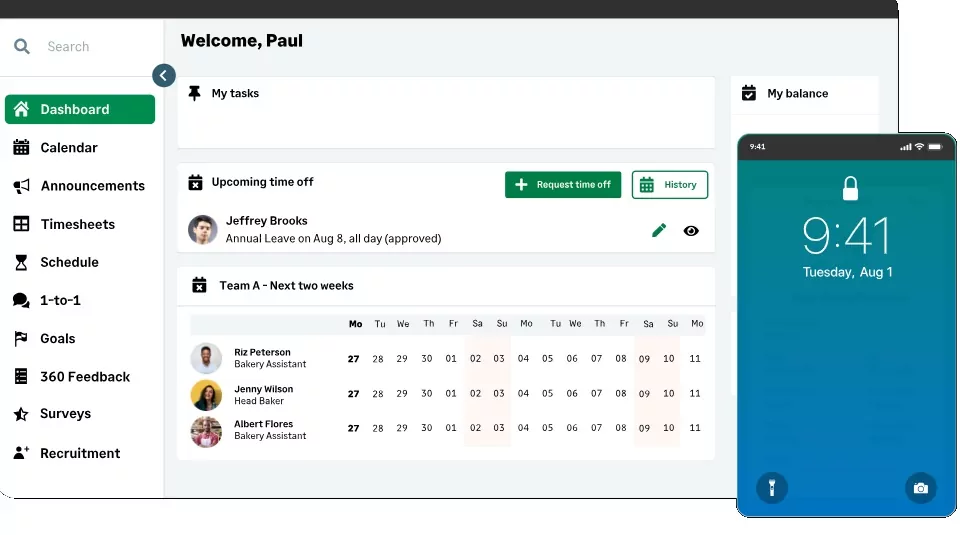
Photo from Sage HR
While it’s primarily known for its HR features, Sage HR also offers features that make time management easier.
The platform brings together time tracking, attendance, and project allocation in one clean, user-friendly interface. Teams can log hours against specific projects or clients, allowing managers to get a clear picture of how time is being spent.
For day-to-day admin, Sage HR shines in a few areas. The holiday booking system makes time-off tracking seamless, with employees able to submit leave in seconds and managers approving it just as quickly.
File sharing with staff is also smooth and centralized, helping teams keep documents, policies, and project files in one accessible space.
Another highlight is the software’s time management features, integrating with Sage’s broader ecosystem, including payroll and accounting. This means tracked time can flow directly into billing or payroll integrations.
That said, Sage HR isn’t without its flaws. Notifications can be a bit overwhelming, especially for managers or HR teams involved in multiple approval workflows.
Some users have also noted issues with the mobile app, from login problems to glitches that affect payslip generation, which can disrupt daily operations.
And while payroll integrates smoothly, adjusting or resetting payslips isn’t as easy as it should be, often requiring extra steps or support intervention.
Pricing:
- Free Plan: No
- Paid Plan: $6.00 per user per month plus $3 per employee per month for timesheet access
Available on:
Android, iOS, Web
Ratings:
- Capterra: 4.5/5
- G2: 4.4/5
- Play Store: 4.8/5
- App Store: 4.6/5
Pros:
- Timesheets and scheduling are easy to set up and use
- Easy to find employee information
- Seamless file sharing with staff
Cons:
- Notifications can be too much
- Not easy to reset and adjust payslips
- Module based billing can be a little restrictive
“I really liked the mobile app of this soft. It was easy to setup and very easy to use. Employee scheduling feature helped a lot with my projects where I needed full power.” – Haba L.
(Source: Capterra)
“It’s a bit clumsy to use. I wouldn’t consider it intuitive and the customer facing product looks a bit tired and dated. If you enter an incorrect email address in payroll it is not easy to reset the payslips for the employees.” – Sally M.
(Source: Capterra)
My Hours – Best Time Management Software for Flexible Time Logs
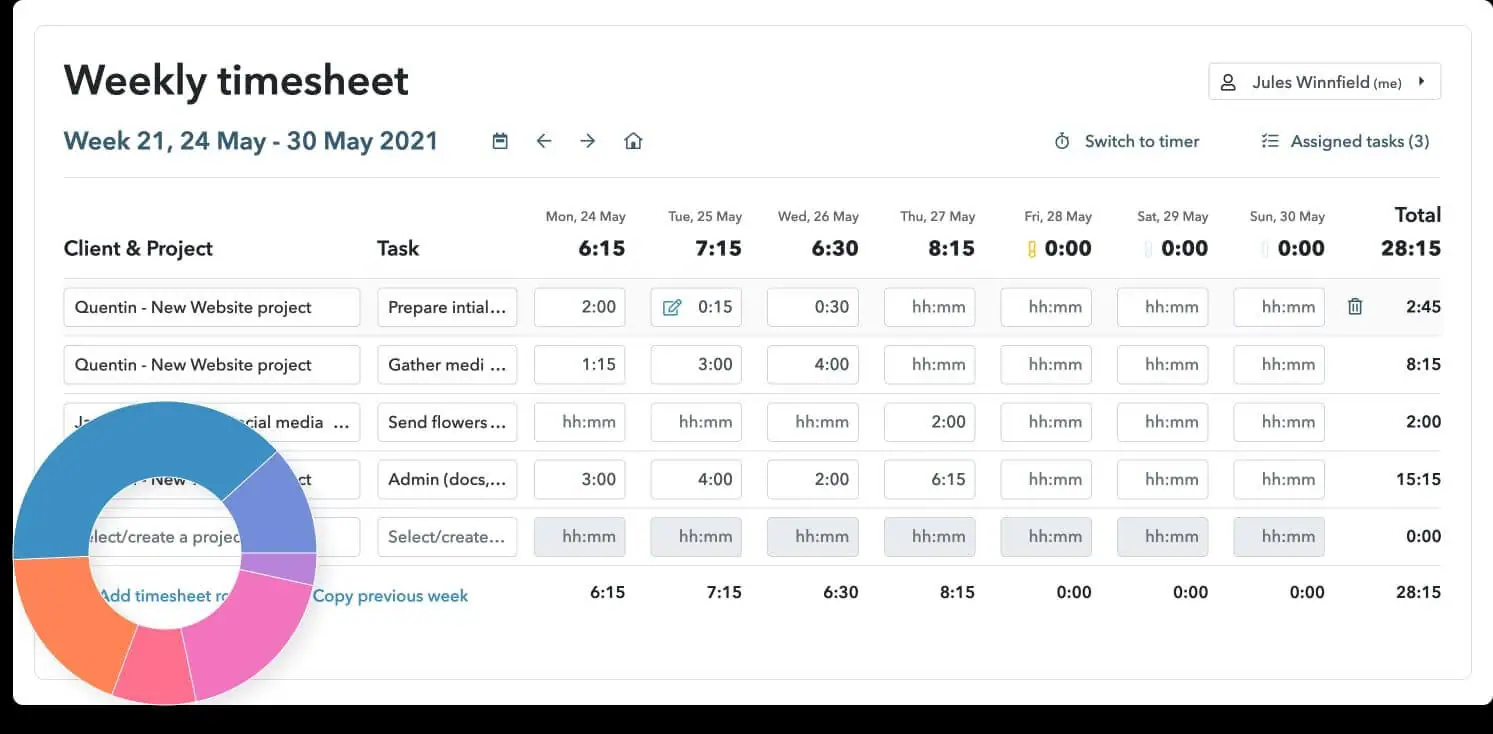
Photo from My Hours
My Hours is flexible time management software that’s great for tracking project time, managing budgets, and keeping teams organized.
With My Hours, you can easily create clients, projects, and tasks, assign work to your team, and track time from anywhere using a browser or mobile device. Multiple ways to log hours, including timers and manual entries, make it flexible for different workflows.
The platform centralizes project data and costs, helping teams monitor profitability, minimize timesheet errors with approvals, and generate professional-looking reports.
The free version offers enough functionality for small teams to manage projects effectively, while responsive customer support ensures any issues are quickly addressed.
However, My Hours does have some limitations. Reports lack flexibility and multilingual support; there are occasional bugs when converting tracked hours into billable amounts, and third-party integrations are limited.
Pricing:
- Free Plan: Yes, for up to 5 users
- Paid Plan: Starts at $4.00 per user per month, billed annually
Available on:
Desktop, Mobile, Web, Browser Extension
Ratings:
- Capterra: 4.8/5
- G2: 4.6/5
- Play Store: 3.6/5
- App Store: 5/5
Pros:
- Straightforward to keep track of projects and costs
- Helpful and responsive customer support
- Multiple ways to organize time entries
Cons:
- Reports lack flexibility and multilingual support
- Limited third-party integrations
- Bug when converting tracked hours into billable amounts
“I like that it’s simple. I also like that Tasks that have the same name across different Projects are grouped together – it helps me see how much I’m in meetings or doing individual tasks or doing field work.” – Justina O.
(Source: Capterra)
“It has some strange bug when converting hours into cash at billing. Always made some errors and I didn’t understand why, talked with the support about it. Not sure if it’s fixed now.” – Radu G.
(Source: Capterra)
Basecamp – Best Time Management Software for Team Communication
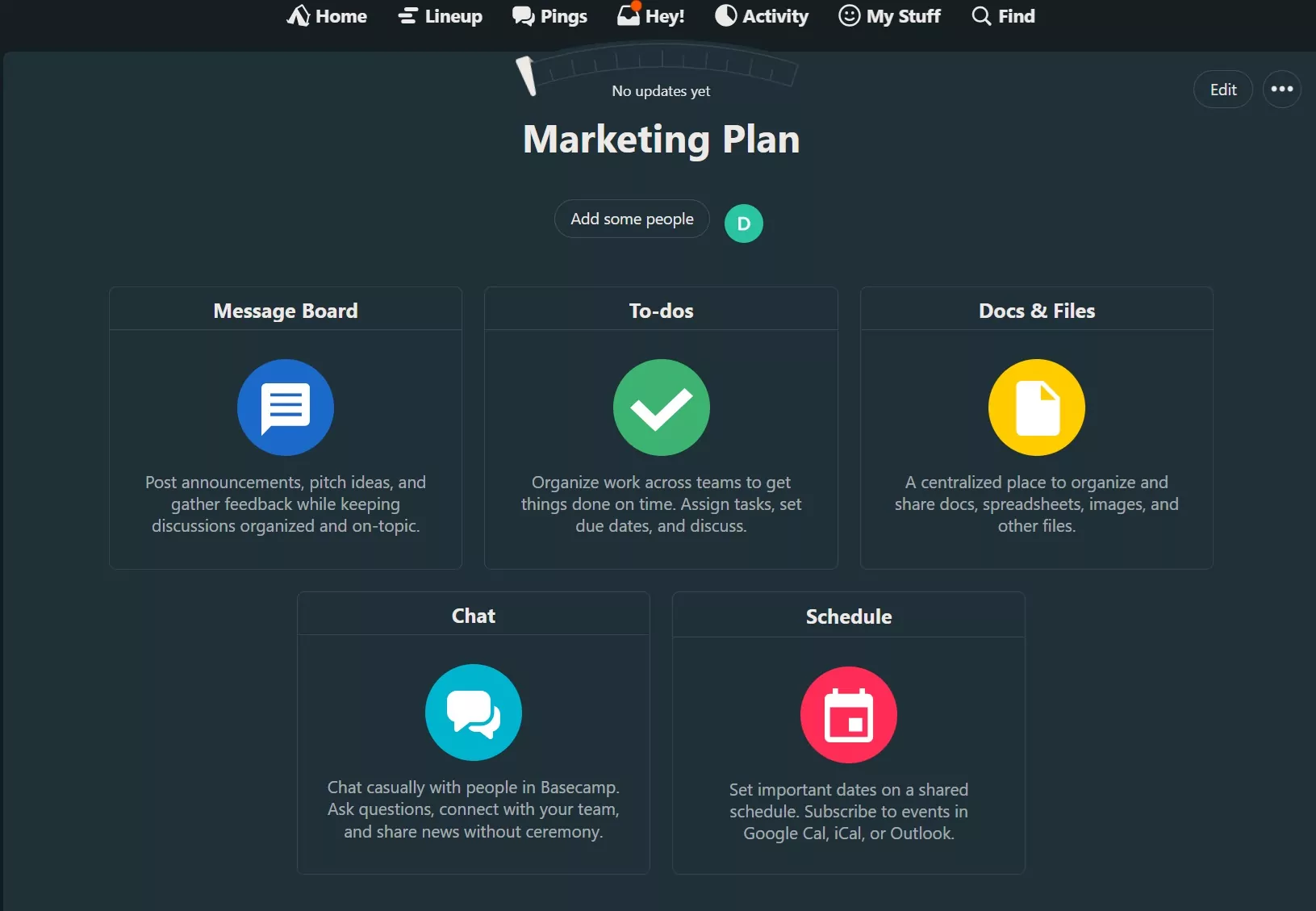
Photo from Basecamp
Basecamp is a time management software that is designed to keep teams organized, focused, and connected.
Projects in Basecamp act as centralized hubs where tasks, discussions, deliverables, and decisions all come together.
File sharing is simple, communication between staff and vendors is streamlined, and project data stays organized and easy to access.
Visual tools like Hill Charts, Lineup, and Mission Control make progress visible at a glance, while reports provide real evidence of work completed, helping managers stay confident in tracking accountability.
Basecamp also includes basic time tracking, letting teams log hours directly on tasks.
While it doesn’t offer advanced analytics or payroll integrations, it’s sufficient for small-scale tracking and general oversight. Onboarding new team members is straightforward, thanks to Basecamp’s intuitive interface.
However, Basecamp isn’t perfect. The platform can feel expensive compared to other tools, the editor is somewhat limited, and customization options fall short for complex, multi-phase workflows. Notifications can also become overwhelming if your team manages many tasks at once.
Pricing:
- Free Plan: Yes
- Paid Plan: Starts at $15 per user, per month, billed monthly
Available on:
Web, Desktop, Mobile
Ratings:
- Capterra: 4.3/5
- G2: 4.1/5
- Play Store: 4.7/5
- App Store: 4.7/5
Pros:
- Simplifies file sharing
- Effective communication between staff and vendors
- Centralizes project data
Cons:
- Expensive compared to other options
- Limited customization for complex or multi-phase workflows
- Notifications can be overwhelming
“Basecamp is an absolutely fantastic resource for our team in creating and managing work flows, events, communication, and other programs. It is absolutely crucial for us and we use it daily. It is extremely easy to use and sets up practical plans for completing tasks.” – Angela P.
(Source: Capterra)
“Our workflow is complex (multiple phases, branching, conditional flows), Basecamp has felt restrictive at times. Notifications are sometimes overwhelming with the amount of to-dos we input.” – Abby L.
(Source: Capterra)
My Selection Process for the Best Time Management Software in 2026
Finding the right time management software is about choosing a tool that actually works for your team. Here’s how I evaluated each app:
- Hands-on testing: I actively used each tool across multiple projects, tracked time for different tasks, monitored attendance, and explored reporting dashboards to see how they perform in real-world scenarios.
- Free & paid plans: I tested both free and paid versions to understand limitations, premium features, and real value for teams of various sizes.
- Usability first: The best time management software only works if people actually use it. I prioritized tools that are intuitive enough to get a team up and running without a training program, because friction at the clock-in stage kills adoption fast.
- User feedback: I analyzed reviews on Capterra, G2, and other trusted platforms to see how teams use these tools long-term. Patterns from real users reveal strengths and weaknesses beyond my own testing.
- Core functionality & value: I assessed time tracking, project management integration, reporting, payroll support, and pricing to ensure each tool delivers meaningful value.
So, What is the Best Time Management Software in 2026?
Choosing the best time management software comes down to what your team actually needs: accurate time logs, smarter budgeting, real-time project visibility, and easy adoption across devices.
After comparing the leading time management tools in the industry, Jibble stands out with its powerful time tracking, attendance management, project tracking, and reporting features, all in one easy-to-use platform. With 100% free access for unlimited users, Jibble helps teams manage their time more efficiently without the restrictions found in many other solutions.
Meanwhile, platforms like Wrike, Clockify, Hubstaff, and QuickBooks Time each serve different workflows depending on whether your priority is workflow automation, budgeting, remote productivity tracking, or accounting integration.
Looking for more ways to manage your time? Check out our roundup of the best project tracking software in 2026!
FAQs
Some frequently asked questions...
The best time management software depends on team size, workflow, and budget. Tools like Jibble, Clockify, and Wrike are commonly used because they balance tracking, reporting, and project management features.
Among these, Jibble is especially popular for teams that want a simple but powerful solution without high costs.
Yes, there are several free time management software options available for individuals and teams. Many tools offer basic tracking features at no cost, but Jibble stands out with completely free access for unlimited users. It helps teams track work hours, attendance, projects, and productivity, making it a scalable choice for growing businesses.
Time management software helps you understand how working hours are spent across tasks and projects. It improves productivity, reduces wasted time, and makes billing more accurate.
Tools like Jibble also help teams stay accountable through real-time tracking and automated reporting.
Time management software improves productivity by helping teams identify where time is being spent. It highlights inefficiencies and supports better planning and resource allocation.
With tools like Jibble, managers can also track attendance and monitor project progress in real time.