
How time rounding works
Automatically round clock-ins, clock-outs, and breaks to set intervals for more consistent time tracking.
Jibble’s time tracking software allows you to automatically adjust clock-ins, clock-outs, and break times to consistent intervals. You can round times up, down, or to the nearest increment, helping simplify payroll calculations and maintain consistent reporting.
This feature can be configured by Admins and Owners.
This article covers:
- How time rounding works
- Setting up time rounding
- Editing rounding rules
- Archived rounding rules
- Viewing rounded time entries
How time rounding works
Time Rounding allows you to adjust clock-ins, clock-outs, and break times to pre-defined increments. You can round time up, down, or to the nearest interval.
Notes:
- You can create multiple rounding rules per entry type.
- Each rule can have its own effective date range.
- The start date can only be configured for a current or future date; past dates cannot be used.
- If the current date (today) is selected as the start date, time rounding will apply immediately from the moment the settings have been saved. Note that it will not apply retrospectively to the start of the current day.
- If a new rule overlaps with an existing one, the existing rule’s end date will be automatically adjusted to end before the new rule’s start date.
- Manual time entries with start and end times will be rounded, while manual hour entries that only record duration will not.
- If rounding is enabled for breaks, both the break start and break end timestamps will be rounded.
- Rounding is applied to timestamps, not durations.
- Editing or deleting entries triggers recalculation.
- Past entries that were already rounded will remain rounded, even if rounding is later disabled (e.g., due to a downgrade).
Setting up time rounding
- Go to Time Tracking, and select Time Rounding.
- Click Add rule for the type of entry you want to round – Clock ins, Clock outs, or Breaks.
- A sidebar will open where you can configure the following:
- Rounding method:
- To nearest: Rounds to the nearest interval.
Example: Clock in at 9:07 AM with a 15-min interval → rounded to 9:00 AM - Up to: Always rounds up to the next interval.
Example: Clock in at 9:07 AM with a 15-min interval → rounded to 9:15 AM - Down to: Always rounds down to the previous interval.
Example: Clock in at 9:07 AM with a 15-min interval → rounded to 9:00 AM
- To nearest: Rounds to the nearest interval.
- Rounding interval: 5 min / 6 min / 15 min / 30 min
- Date range: Start date (required) and End date (optional)
Note: If the End date is left blank, the rule will continue indefinitely for all future dates.
- Rounding method:
- Click Save to create the rounding rule.
▶️ Try the steps out yourself.
Editing rounding rules
- Go to Time Tracking, and select Time Rounding.
- Click the pencil icon next to the rule you want to edit.
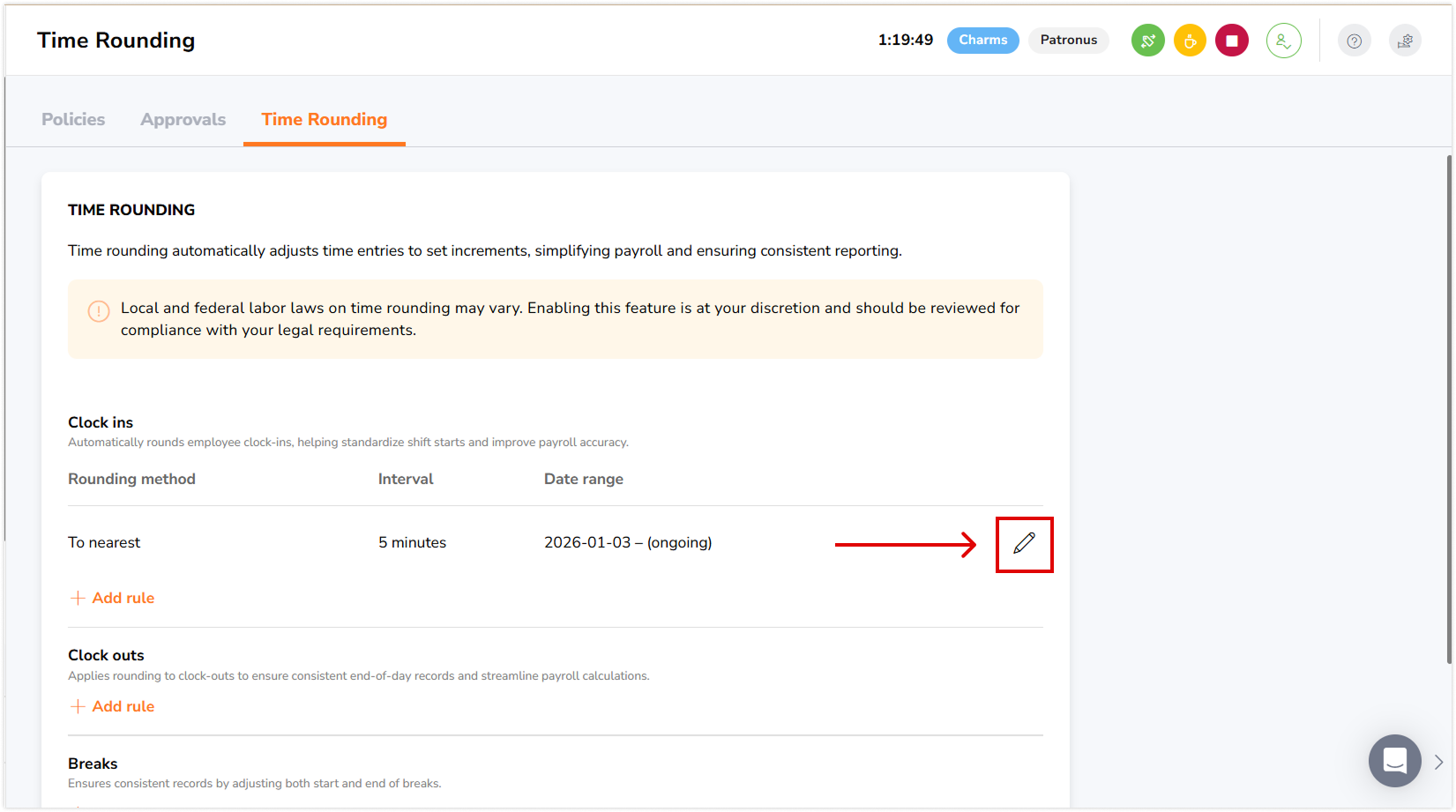
Notes:
- Rounding method and interval cannot be changed for rules with a start date in the past.
- Start and end dates can be updated as follows:
- No subsequent rule: dates can only be changed for future dates.
- With a subsequent rule: the end date cannot extend beyond the next rule’s start date.
Archived rounding rules
Rounding rules are automatically archived when their entire date range falls in the past. Archived rounding rules are kept for reference but no longer affect time calculations.
How archiving works:
- A rule is moved to Archived rounding rules when both its start and end dates are in the past.
- Only active and future rules appear in the main Time Rounding view.
- Archived rules cannot be edited, but you can view their details for historical reference.
Note: Active rules cannot be archived manually. If you no longer need a specific rule, you can edit its end date to stop it from applying going forward. If you no longer need time rounding at all, you can disable rounding instead.
To view archived rules:
- Go to Time Tracking, and select Time Rounding.
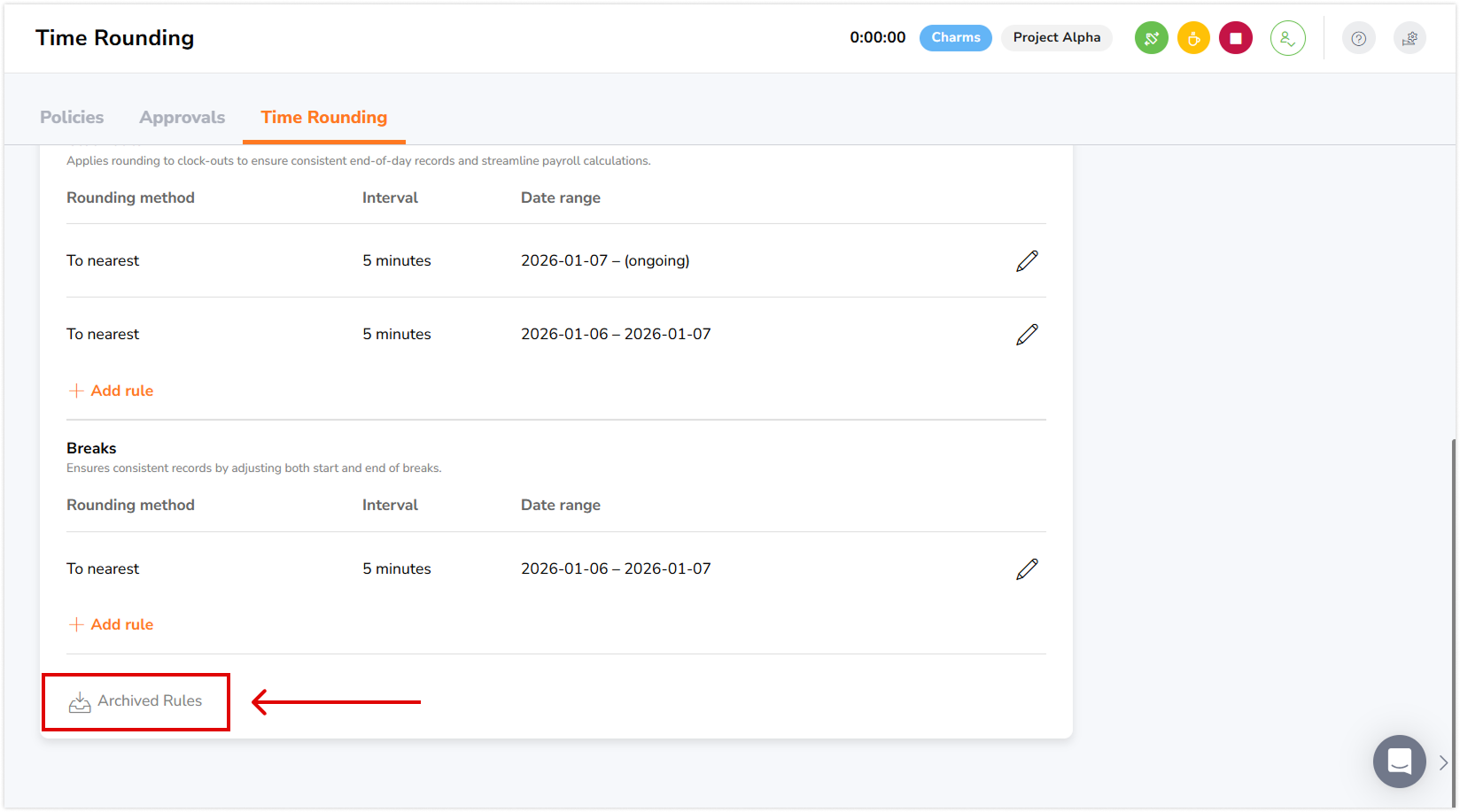
- Click on Archived Rules to view Archived rounding rules.
- Each archived rule displays:
- Entry type (Clock in, Clock out, or Break)
- Rounding method (To nearest, Up, or Down)
- Rounding interval (5 min, 6 min, 15 min, or 30 min)
- Date range (Start and end dates)
Viewing rounded time entries
Timesheets
- Go to Timesheets.
- Select the member whose timesheet you want to view.
- Click on a specific time entry for the day to open its sidebar.
- In the sidebar, you’ll see both the Actual Time and the Rounded Time.
Approvals
- Go to Timesheets, and click on Approvals.
- Approved timesheets: Once a pay period timesheet is approved, its time entries are not recalculated or adjusted by rounding.
- Reopened timesheets: If you reopen an approved timesheet that falls after the rounding start date, time entries will be recalculated and rounded based on the current rounding rules.
- Timesheets before rounding: Timesheets dated before rounding was enabled remain unchanged, even if reopened.
- Select the member whose timesheet you want to view, and you’ll land on the time entry view.
- The sidebar displays both the Actual Time and the Rounded Time.
▶️ Try it hands-on right here.
Reports
- Rounded times are displayed in the Timesheets, Tracked Time, and Attendance reports.
▶️ Follow the walkthrough to learn.