
Reviewing and approving project hours
Review and approve the hours your team has tracked to a project
With Jibble’s project time tracking software, you can review the hours tracked against projects before signing off on them. Project hour approvals help ensure tracked time is accurate, complete, and ready for reporting, invoicing, or project review.
If you haven’t created your projects yet, check out setting up projects to get started.
This article covers:
- Understanding project hour approvals
- Enabling project hour approvals
- Understanding approval statuses
- Approving project hours
- Making changes after approval
- Viewing approval history
Understanding project hour approvals
Project approvals work independently from timesheet approvals. Timesheet approvals are person-centric and tied to your pay period cycle; while project approvals are project-centric and can cover any date range. You can use both approval workflows at the same time, depending on your needs. For more details, see our article on the difference between timesheet and project approvals.
Approving project hours does not lock time entries. Your team can continue adding, editing, or deleting time entries after hours have been approved.
Instead, approval records the tracked hours at that point in time. This approved figure becomes the reference point for future changes.
If the tracked hours change after approval, Jibble automatically compares the updated hours against the approved figure and marks the date as Modified. This lets you identify which approved hours have changed and review them before approving the updated amount.
Who can manage and approve project hours?
- Owners and Admins can enable project hour approvals, approve hours, reopen approvals, and view approval history for all projects.
- Project Leads can approve hours, reopen approvals, and view approval history only for projects they are assigned to manage when project hour approvals are enabled.
Learn more about roles and permissions in Jibble.
Enabling project hour approvals
Project approvals are disabled by default and can be enabled individually for each project.
To enable project approvals:
- Go to Activities & Projects and select Projects.
- Click the pencil icon next to the project you want to update.
- Select the checkbox for Enable approval of project hours.
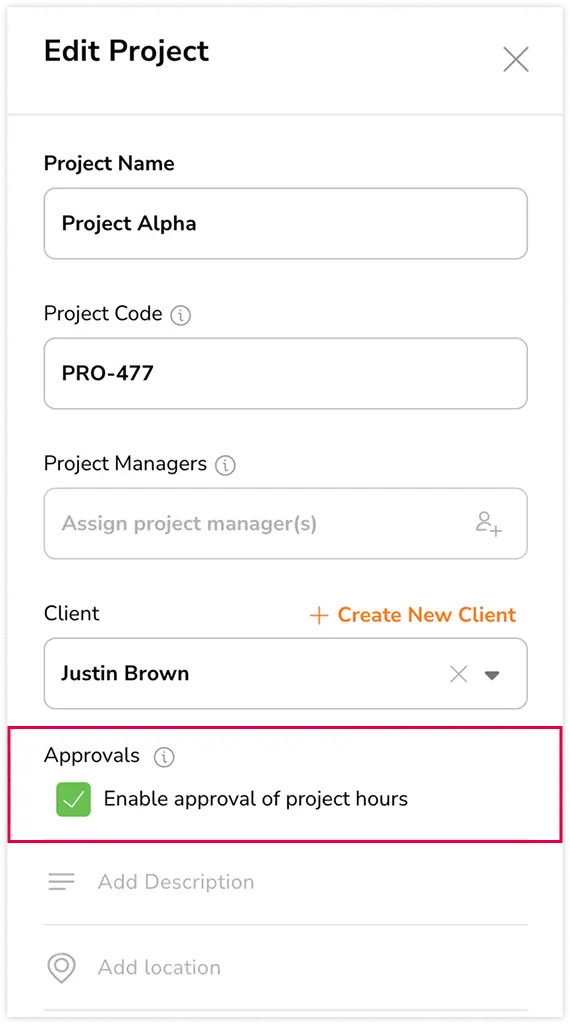
- Click Save.
Once enabled, approval statuses and approval actions will appear when viewing the project’s hours.
Understanding approval statuses
Each date has a status showing the current approval state. You can expand a date to see the approval status of each member whose hours are included for that date.
| Status | What it means |
|---|---|
| Open | Hours are pending review. |
| Approved | Hours have been reviewed and approved. |
| Modified | Approved hours have changed and need to be reviewed again. |
| Mixed | Members have different approval statuses for the date. Hover over the status to view a breakdown of each status and the number of members with that status. |
Approving project hours
To review project hours before approving:
- Go to Activities & Projects and select Projects.
- Select the project you want to review.
- Choose your date range.
- You’ll see a breakdown of tracked hours by date, along with the billable amount and approval status for each date.
- Click a date row to expand it and view the hours and approval status for each member.
You can take action at either the date level or member level.
To approve a single date:
- Find the date you want to approve.
- Click Approve on that date’s row.
- Review the confirmation message and confirm.
To approve a date range:
You can only approve dates that currently have the same status across the selected range. For example, if all selected dates are Open, you can approve them together. If all selected dates are Approved, you can reopen them together.
- Select the date range you want to approve. You can approve up to 31 days at a time.
- Click Approve Hours at the top of the page.
- Review the confirmation message and confirm.
- All dates within the selected range will be marked as Approved.
Note: You cannot approve hours for a date if someone is still clocked in. Make sure everyone has clocked out first so the tracked hours are complete.
If you need to undo an approval:
- Select the date range you want to reopen.
- Click Reopen Hours at the top of the page, or click Reopen on an individual date.
- Confirm the action.
Reopening removes the approved snapshot for those dates and returns them to an unapproved state. You can review and approve them again later.
Making changes after approval
Approved hours are not locked. Team members can still add, edit, or delete time entries after approval, as long as they have permission to edit time entries. When this happens:
- The date’s status changes from Approved to Modified.
- A change indicator appears next to that date’s tracked time.
- Expanding the date shows which member’s hours changed, including the previously approved figure and the current figure.
- Only members whose hours have changed will be marked as Modified. Other members’ approved hours remain unchanged.
To approve modified hours:
- Expand the date to review the changes to each member’s hours.
- Review the previously approved hours and the current tracked hours.
- Click Approve for the member whose modified hours you want to approve.
- You can also approve all applicable modified hours for a date at once by clicking Approve on the date’s row.
- The updated hours will become the new approved figure, and the member’s status will return to Approved.
Note: A date will only become Modified when the total approved hours actually change. If an entry is edited but the final hours remain the same, the status stays Approved.
Viewing approval history
Every approval and reopen action is recorded, giving you a complete history of changes.
To view approval history:
- Open the project.
- Click View approval history.
- For each action you can see:
- Timestamp: When the action happened
- Status transition: What changed, for example Open → Approved
- Date range: The dates affected
- Total hours: The hours included in the action
- By: The person who performed the action
You can expand an approval history entry to view the member details for each affected date, including the approval status and hours for each member.
When approving previously modified hours, the history will also show the previous approved figure and the updated figure.