Managing invoices in Jibble
Learn how to edit invoices, manage invoice statuses and share invoices with clients
Once an invoice is created, Jibble makes it easy to manage the entire billing process, from updating invoice details to tracking statuses and sharing invoices with clients.
For more information, check out our article on creating invoices in Jibble.
This article covers:
Editing an invoice
Only Owners and Admins can edit invoices.
Note: Invoices support up to 200 line items. If you reach this limit, consider splitting the invoice into multiple invoices.
- Go to Invoices.
- Hover over the invoice you want to edit.
Note: Only invoices in Draft status can be edited. - Click on the pencil icon to make changes.
- Update invoice details as needed, including line items, dates, notes, or billing information.
- Click Save to apply your changes.
Note: Only Draft invoices can be edited or deleted. Invoices that are Approved, Paid, or Void cannot be edited to maintain accurate records.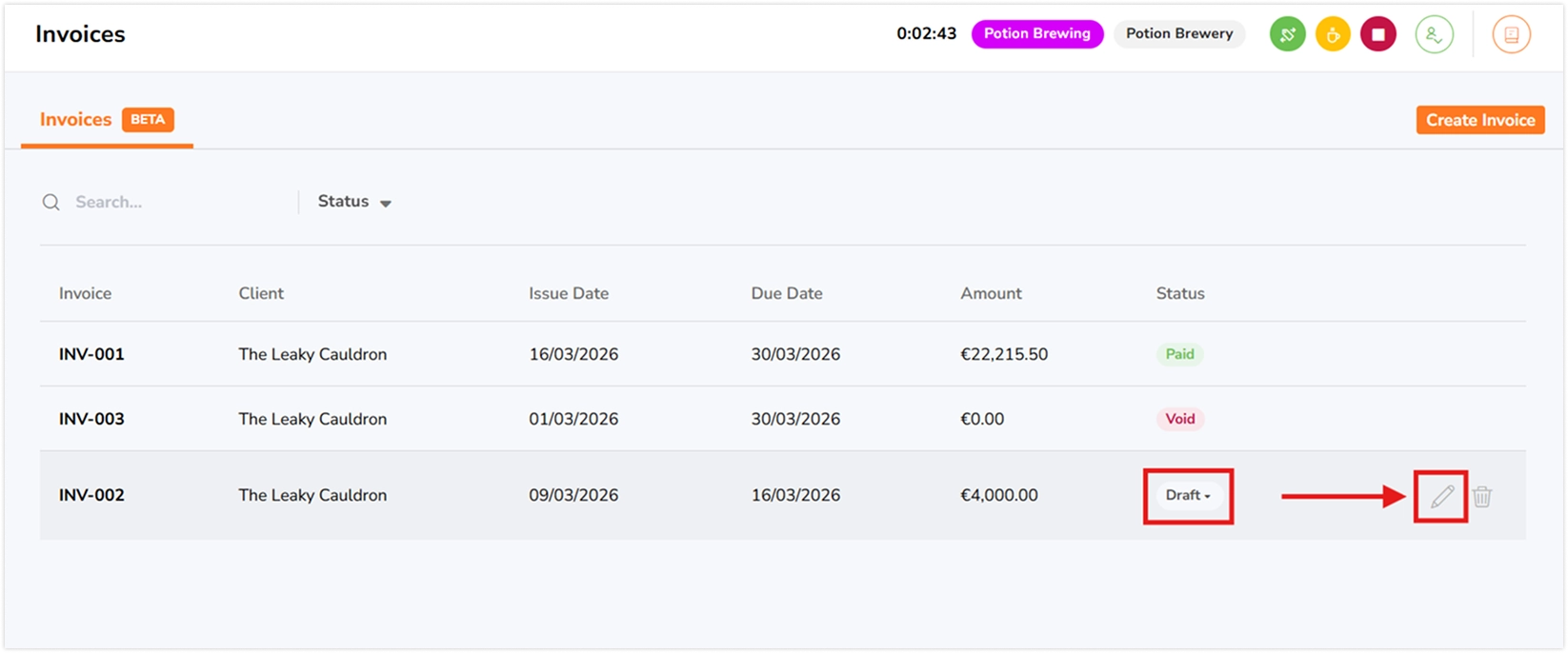
Invoice statuses
Each invoice in Jibble has a status that shows its current stage in the billing process. Invoice statuses help you track progress and control what actions can be taken on an invoice.
-
Draft – The invoice is still being prepared and has not been finalized. Draft invoices can only be marked as Approved.
-
Approved – The invoice has been confirmed and is ready for sending to the client or for payment processing. Approved invoices can be marked as Paid or Void.
-
Paid – Payment has been received. No further changes can be made to the invoice.
-
Void – The invoice has been cancelled and is no longer valid. No further changes can be made.
Sharing invoices
You can share invoices with clients in multiple ways:
Share via link
Invoices can be shared via a link once the invoice status is moved from Draft to Approved.
-
Open the invoice you want to share.
-
Click Share.
-
Copy the shareable link and send it to your client for online viewing.
💡Tip: You can also share the link with clients who do not have a Jibble account.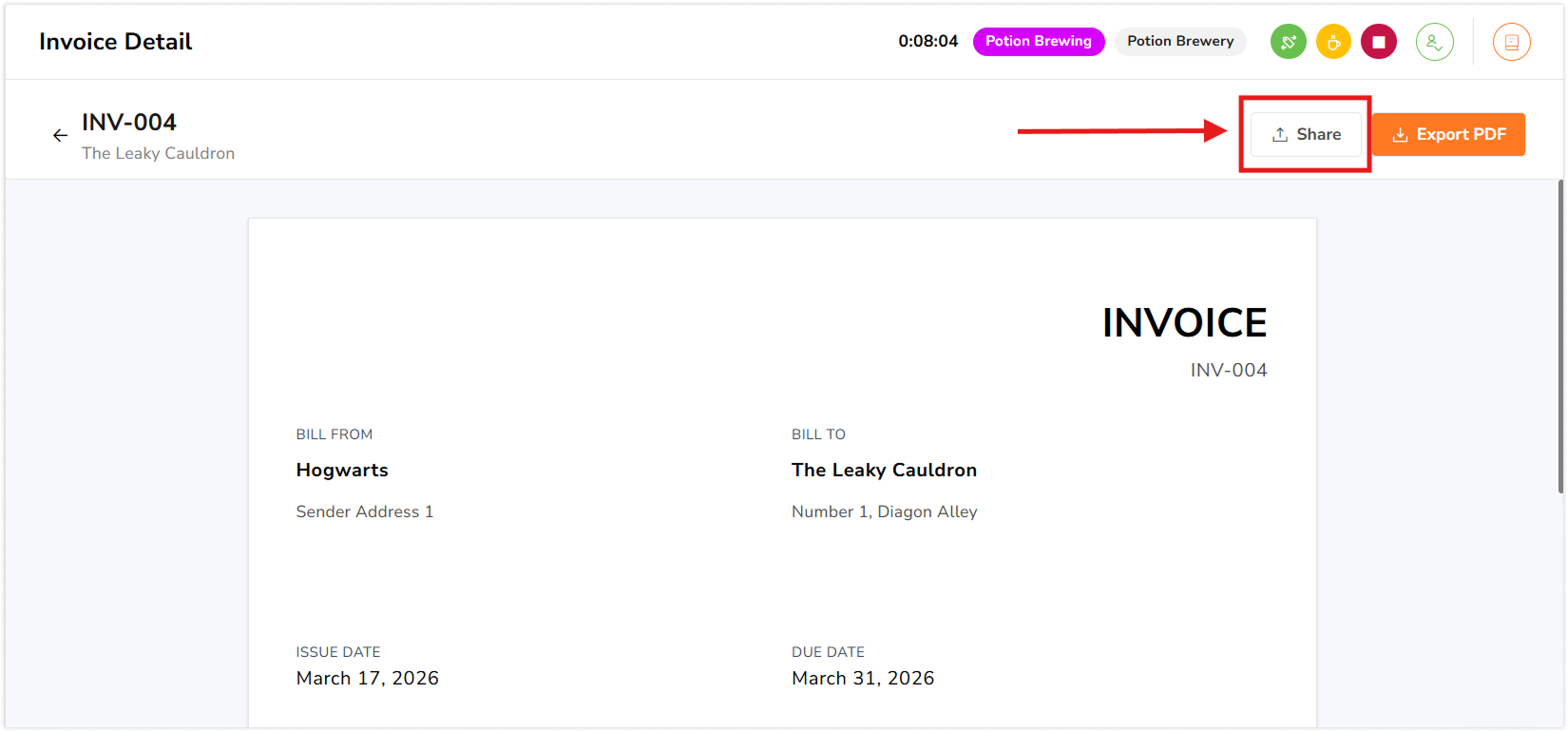
Export as PDF
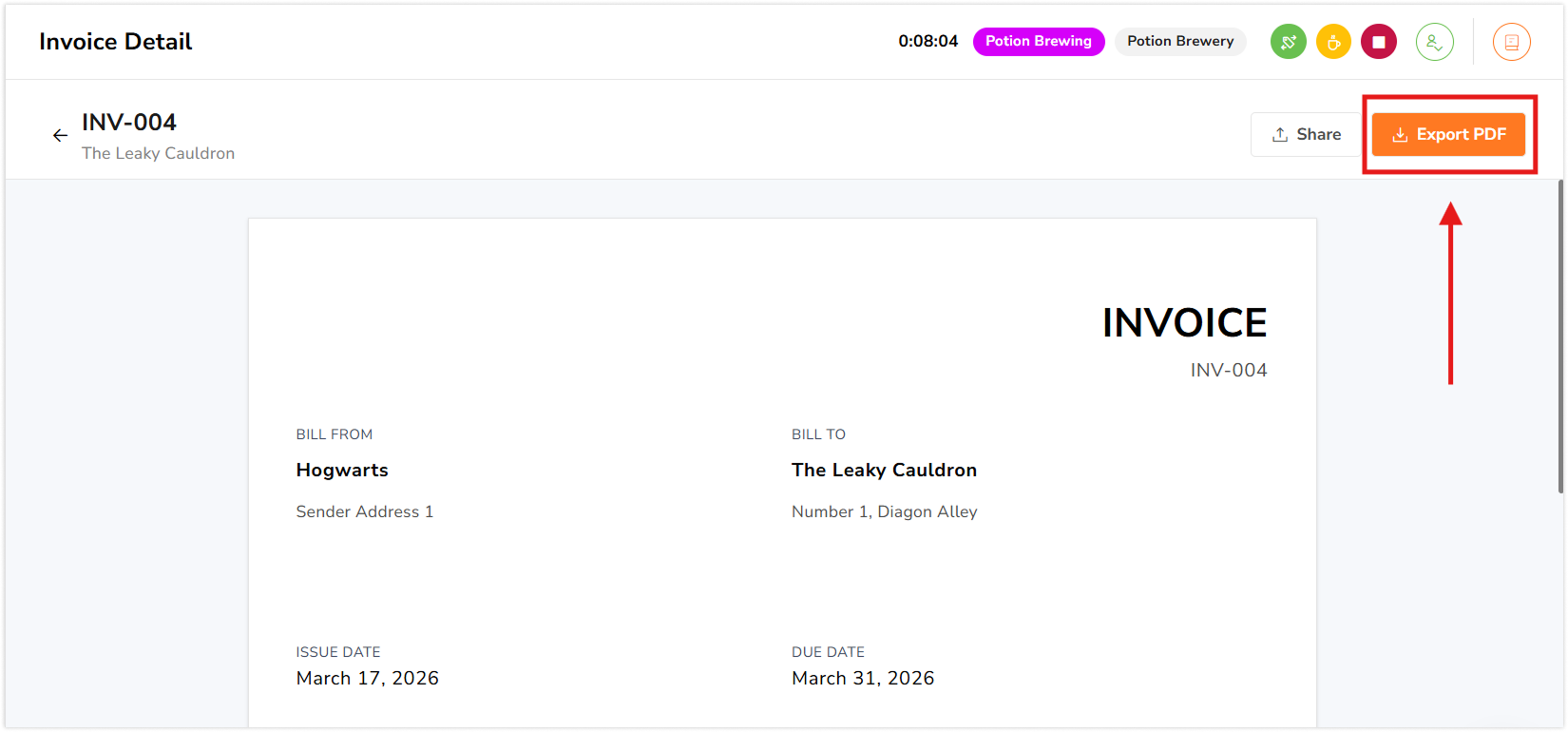
Invoices can be exported as a PDF even when the invoice is still in Draft status.
-
Open the invoice.
-
Click Export PDF.
-
You can then email the PDF to your client or save it for your records.