
How to use Jibble’s QR code kiosk?
Let your team clock in and out securely by scanning personal QR codes via a shared device.
Jibble’s QR code kiosk lets employees clock in and out by scanning their personal QR code at a shared device as they arrive on site.
Since each person’s QR code is unique to their Jibble account, clocking in is quick and accurate – no passwords, PINs, or face scans needed. It’s a simple, fast way for on-site teams to keep attendance reliable and cut down on buddy punching.
This article covers:
How the QR code kiosk works
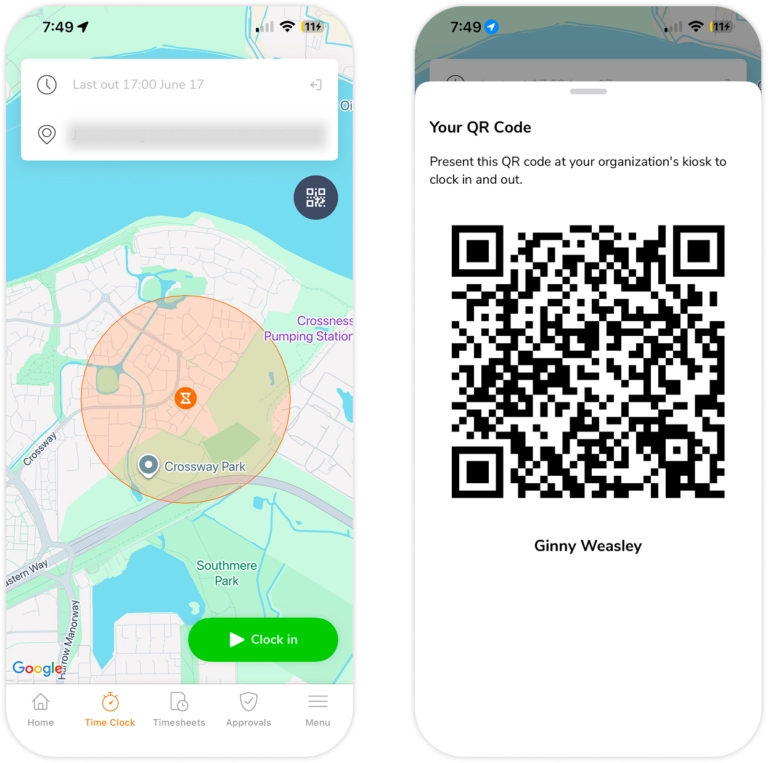
The QR code kiosk lets your team clock in and out by scanning a personal QR code on a shared device. The shared device runs the Jibble app with QR scanner kiosk mode selected which opens a camera view. When a member holds up their QR code, Jibble identifies them and clocks them in or out based on their current status.
Notes:
- If a user is part of multiple organizations, they will have separate QR codes for each one.
- If a user’s account is removed, their QR code stops working.
Accessing QR codes
QR codes can be viewed on the Jibble mobile app and downloaded as a PDF for printing or easy access. Depending on your role, you may be able to view and download your own QR code or the QR codes of other members in your organization.
Viewing your own QR code
You can currently view your own QR code in two places:
From the Time Clock screen
- On the Jibble mobile app, go to the Time Clock screen.
- Tap the QR icon to display your QR code.
- The QR code will appear with your full name.
From your account settings
- On the Jibble mobile app, go to your account profile in the top right corner of the Home screen.
- Scroll to the bottom of your profile and locate the QR code field.
- Tap View QR code.
- The QR code will appear with your full name.
- Tap Download as PDF to save a printable copy of your QR code.
Viewing another member’s QR code
Owners and Admins can view and download the QR codes of all members in the organization while Managers can view and download the QR codes of members they manage.
- On the Jibble mobile app, go Menu > Members.
- Select a member from the list.
- Scroll to the bottom of their profile and locate the QR code field.
- Tap View QR code.
- The QR code will appear with their full name.
- Tap Download as PDF to save a printable copy of the QR code.
Note: Members can only view their own QR code.
Tip💡: QR codes can be downloaded as a PDF and printed out for easy access if required.
Using QR scanner kiosk mode
Before you start, make sure you have set up and enabled kiosk mode first.
Setting up the QR scanner
Owners, Admins, and Managers can switch a kiosk to QR Scanner Mode from Jibble’s mobile app.
- On the mobile app, go to Menu > Switch to Kiosk > Select a Kiosk.
- Tap the cog icon in the top left corner to access Kiosk Settings.
- Select QR Scanner Mode under the Kiosk settings section.
- Click into QR Scanner Mode to adjust other settings if needed such as:
- Recording GPS location
- Setting a default activity
- Setting a default project
- Enabling offline time tracking
- Once done, tap the back arrow to close the Kiosk Settings screen.
- The kiosk displays a live camera feed, ready to scan members’ QR codes.
Clocking in and out with QR
- Open your QR code in the Jibble mobile app (from the Time Clock screen or your profile), or use your downloaded QR code.
- Hold your QR code up to the kiosk camera, making sure the whole code is visible.
- A confirmation message will be displayed once you are successfully clocked in.
- To clock out, simply hold your QR code up to the kiosk again.
Note: QR Scanner mode does not support taking breaks (members can only clock in and out), activity or project selection, PIN confirmation, and Geofencing.